

AI Chat
The AI chat is the centerpiece of Contentrain Studio. It is a Claude-powered conversation interface that lets you manage content, models, and project configuration through natural language. Every action the agent takes creates a real Git commit — auditable, reviewable, and reversible.
Studio chat should be understood as the web continuation of the same package contract described in Contentrain AI. @contentrain/rules and @contentrain/skills define the quality and workflow expectations; Studio turns those expectations into an authenticated team interface with roles, review, and delivery.
Chat Panel Overview
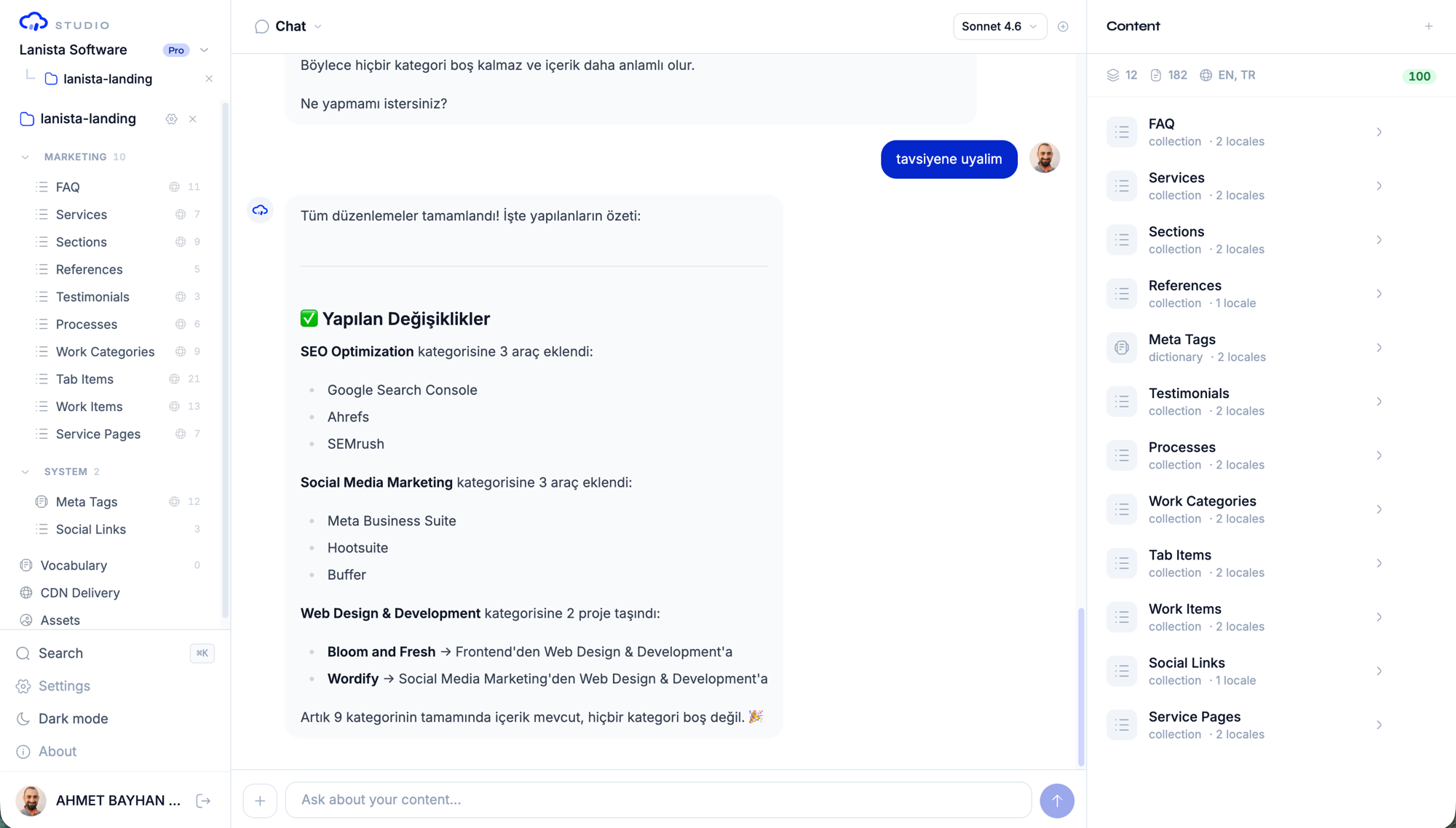
The chat panel occupies the center of the three-panel project workspace. It consists of:
- Conversation area: Scrollable message history with user and assistant messages
- Tool call indicators: Expandable cards showing what the agent did
- Context bar: Pinned items from the content panel (above the input)
- Input area: Message input with model selector and send button
- Conversation history: Sidebar list of past conversations
Sending Messages
Type your message in the input area and press Enter (or click the send button). The agent processes your message and responds with:
- Text response — explanation, confirmation, or follow-up question
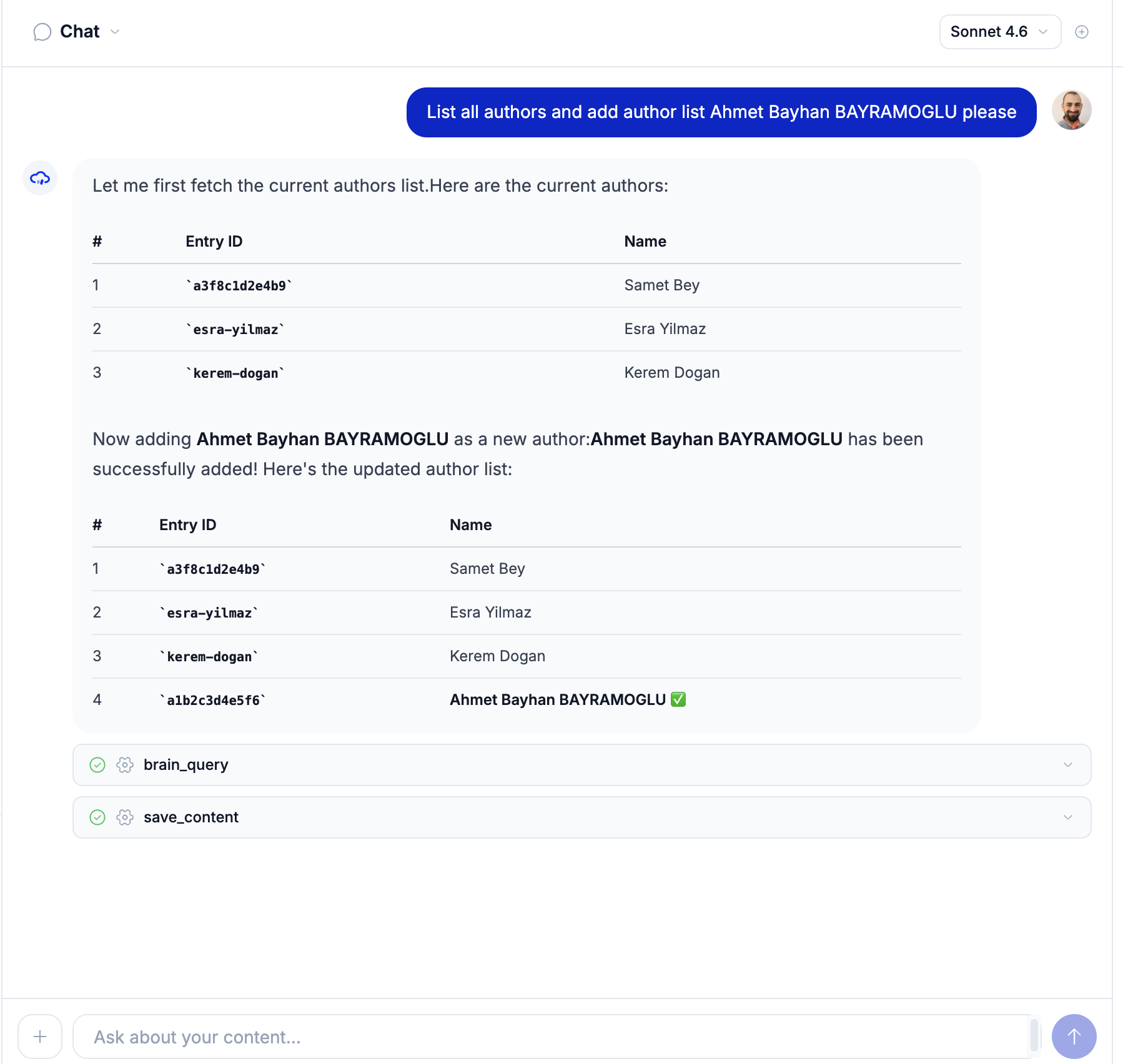
- Tool calls — actions performed on your content (shown as expandable cards)
- Affected resources — what changed as a result of the conversation
Messages stream in real-time via Server-Sent Events (SSE). You can see the response building character by character.
Example Prompts
Here are common tasks you can accomplish through chat:
Content Management:
"Create a blog post titled 'Getting Started with Studio' with a summary
and set the published date to today"

"Update the homepage hero tagline to 'Build content, not infrastructure'"

"Delete all FAQ entries that have 'deprecated' in the title"

"Show me all team members and their roles"
Model Management:
"Create a collection model called 'Testimonials' in the marketing domain
with author (string), quote (text), rating (rating), and avatar (image)"

"Add a 'featured' boolean field to the Blog Posts model"

"List all models and their field counts"
Branch Management:
"List all pending content branches"

"Merge the branch cr/content/blog-posts/en/..."

"Show me what changed in the latest branch"
Localization:
"Copy all English blog posts to Turkish"

"Add the key 'nav.products' with value 'Products' to the UI Strings
dictionary in English"
Media:
"Upload this image from https://example.com/hero.jpg as the hero banner
with alt text 'Product dashboard screenshot'"

"Search the media library for images tagged 'team'"
Media uploads need CDN delivery
Uploading an image into the media library (a media-intent upload) requires the project's CDN delivery to be enabled. If it is off, the agent returns an actionable error rather than storing a broken asset — attach the file as context (see Context Chips) so the agent can still read it inline. See CDN to turn delivery on.
Model Selection
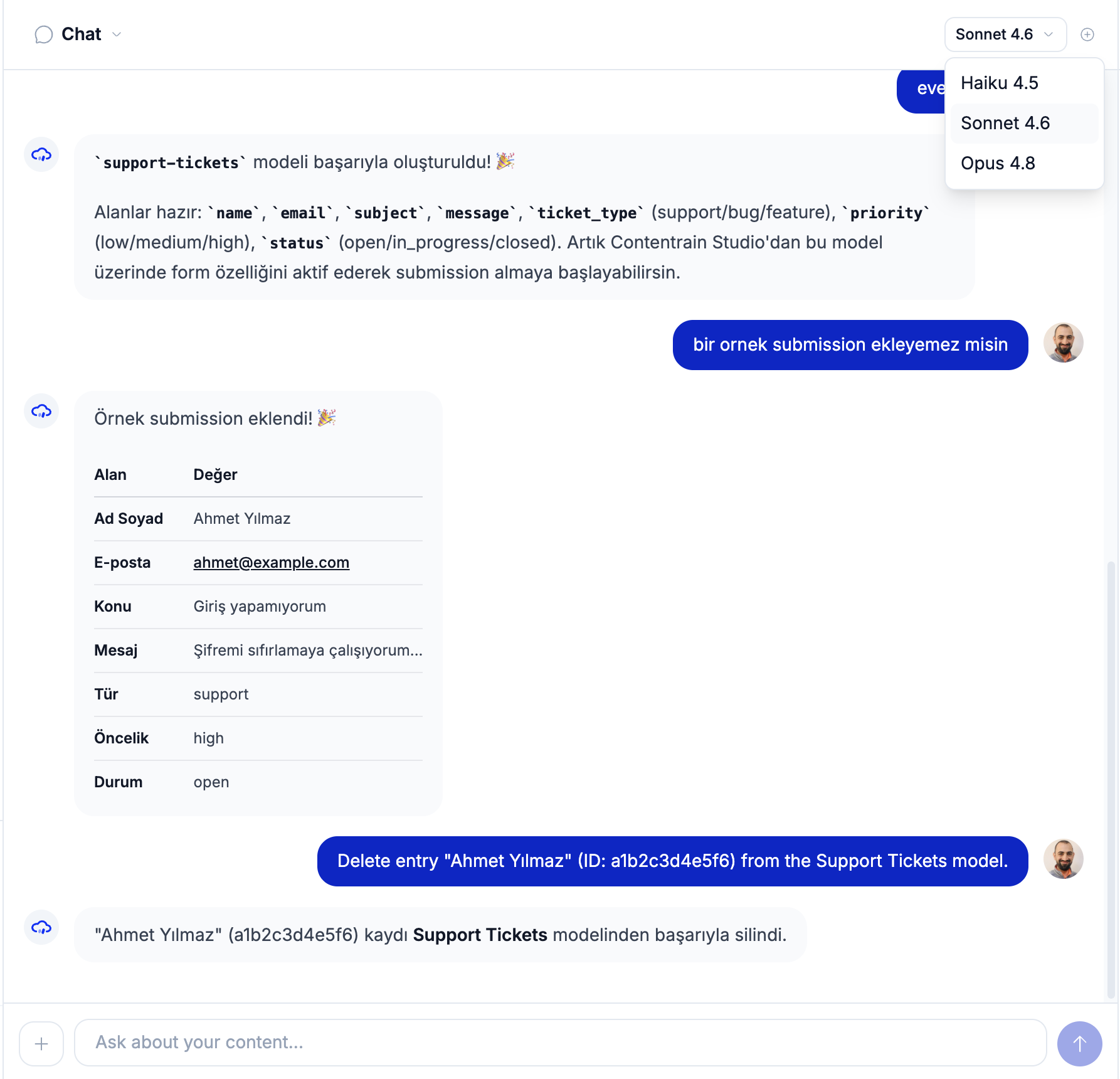
Studio offers four Claude AI models with different performance profiles:
| Model | Label | Best For |
|---|---|---|
claude-haiku-4-5-20251001 | Haiku 4.5 | Fast responses, simple queries, quick lookups |
claude-sonnet-4-6 | Sonnet 4.6 | Balanced — default on full-access plans |
claude-sonnet-5 | Sonnet 5 | Balanced — newest generation |
claude-opus-4-8 | Opus 4.8 | Complex tasks, multi-step operations, nuanced content |
Which models you can pick depends on whether your plan includes the studio-hosted AI key (ai.studio_key), which unlocks the full model lineup:
| Plan | Models Available |
|---|---|
| Starter | Full lineup (Haiku 4.5, Sonnet 4.6, Sonnet 5, Opus 4.8) |
| Pro | Full lineup (Haiku 4.5, Sonnet 4.6, Sonnet 5, Opus 4.8) |
| Enterprise | Full lineup, plus custom options |
The full lineup is gated by ai.studio_key, which is on for Starter, Pro, and Enterprise — Starter is not limited to Haiku. Plans without the studio-hosted key fall back to Haiku only. On plans with full studio AI access, Sonnet 4.6 is selected by default — switch to Haiku for speed, or Sonnet 5 / Opus for quality when needed. The selector sits next to the input area.
TIP
Haiku is ideal for quick queries like "list all models" or "show me the site settings." Save Opus for complex, multi-step tasks like "create a blog structure with three related models and sample content."
Tool Calls Explained
When the agent performs an action, it uses tools — specialized functions that interact with your project. Tool calls appear as expandable cards in the conversation.
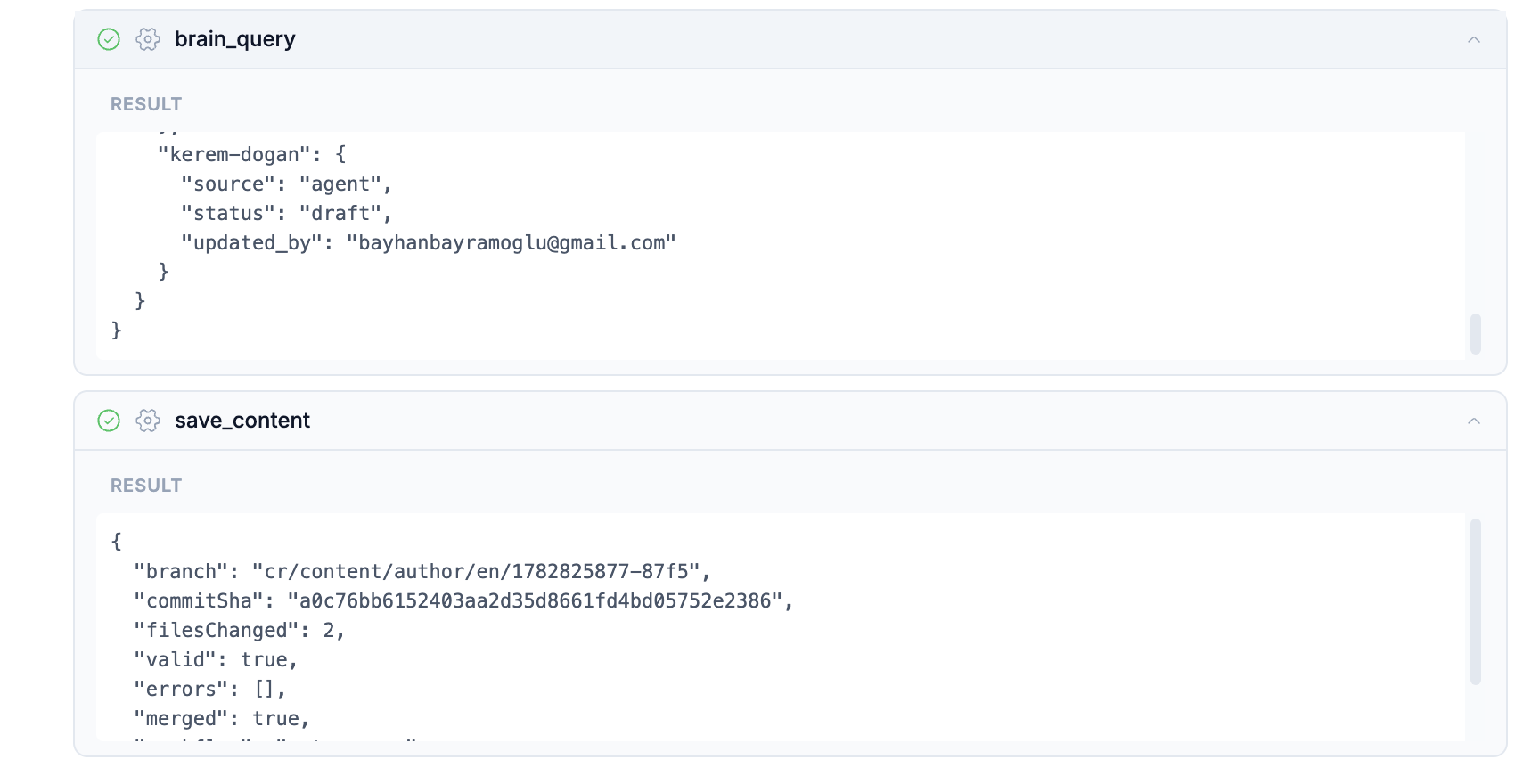
Expand a tool card to inspect its result — for example, save_content returns the branch, commit SHA, files changed, validation, and merge status:
Available Tools
| Tool | Purpose | Creates Branch? |
|---|---|---|
list_models | List all models with field schemas, kind, domain, i18n | No |
get_content | Read content entries for a model and locale | No |
save_content | Create or update content (merges changed fields) | Yes |
delete_content | Remove entries or dictionary keys | Yes |
save_model | Create or update a model definition | Yes |
validate | Validate content against schemas | No |
list_branches | List pending content branches | No |
merge_branch | Merge a branch into the contentrain branch | Yes (merge commit) |
reject_branch | Reject and delete a branch | Yes (branch deletion) |
init_project | Initialize .contentrain/ structure | Yes |
copy_locale | Copy content between locales | Yes |
brain_query | Read content from cache (fast) | No |
brain_search | Full-text search across content | No |
search_media | Search the media library | No |
upload_media | Upload an image from URL | No |
get_media | Get asset metadata | No |
update_status | Publish, unpublish, or archive entries | Yes |
update_media | Update asset alt text, tags, or focal point | No |
delete_media | Delete an asset and all its variants | No |
branch_health | Check pending-branch health vs warn/block limits | No |
relation_expand | Resolve forward/reverse relations for an entry | No |
vocabulary | Read or update the project glossary | Yes |
add_locale | Register a new supported locale in the config | Yes |
delete_model | Permanently delete a model and all its content | Yes |
brain_analyze | Analyze content (SEO, locale parity, stale, quality) | No |
validate_schema | Comprehensive schema validation with health score | No |
list_submissions | List form submissions for a model | No |
approve_submission | Approve a submission (creates a content entry) | Yes |
reject_submission | Reject a form submission | No |
Tool Call Lifecycle
Each tool call goes through these states:
- Pending — Tool is about to execute
- Streaming — Tool is running (for long operations)
- Complete — Tool finished successfully, result is shown
- Error — Tool execution failed, error message is shown
Click on a tool call card to expand it and see the input parameters and result.
Workflow Behavior
Tools that modify content follow one of three workflows:
| Behavior | Description |
|---|---|
| Auto-merge | Changes merge automatically to the contentrain branch (used for init) |
| Workflow-dependent | Follows the project's merge workflow setting |
| Manual | Requires explicit user action (merge/reject branch tools) |
| None | Read-only tools, no Git changes |
Context Chips
Context chips let you give the agent focused awareness of what you are working on. Instead of describing your context in text, you can pin items from the content panel.

Pinning Context
There are two ways to pin context:
- Click the pin icon — Hover over a model, entry, or field in the content panel and click the pin icon
- Drag and drop — Drag an item from the content panel to the context bar above the chat input
Context Types
| Type | What It Provides |
|---|---|
| Model | Full model schema with fields, kind, and domain |
| Entry | Specific entry data with all field values |
| Field | Individual field value and metadata |
| Asset | Media asset information from the library |
How Context Helps
When you pin a model and ask "add a new entry," the agent knows exactly which model you mean and what fields are available. Without context, you would need to specify the model name in your message.
Without context:
"Create a new entry in the Blog Posts model with title 'Hello World'"
With Blog Posts model pinned:
"Create a new entry with title 'Hello World'"
Context chips appear as removable tags above the input. Click the X on any chip to remove it.
Conversation History
Studio preserves your conversation history per project. You can:
- Browse past conversations — Listed in the sidebar with auto-generated titles
- Load a conversation — Click to restore the full message history
- Delete a conversation — Remove conversations you no longer need
- Start a new conversation — Click the "New conversation" button or use the command palette
TIP
Conversation titles are auto-generated from the first message. They help you find past conversations quickly.
BYOA (Bring Your Own API Key)
By default, Studio uses its own API key with monthly message limits based on your plan. With BYOA, you can add your own Anthropic API key for unlimited usage.
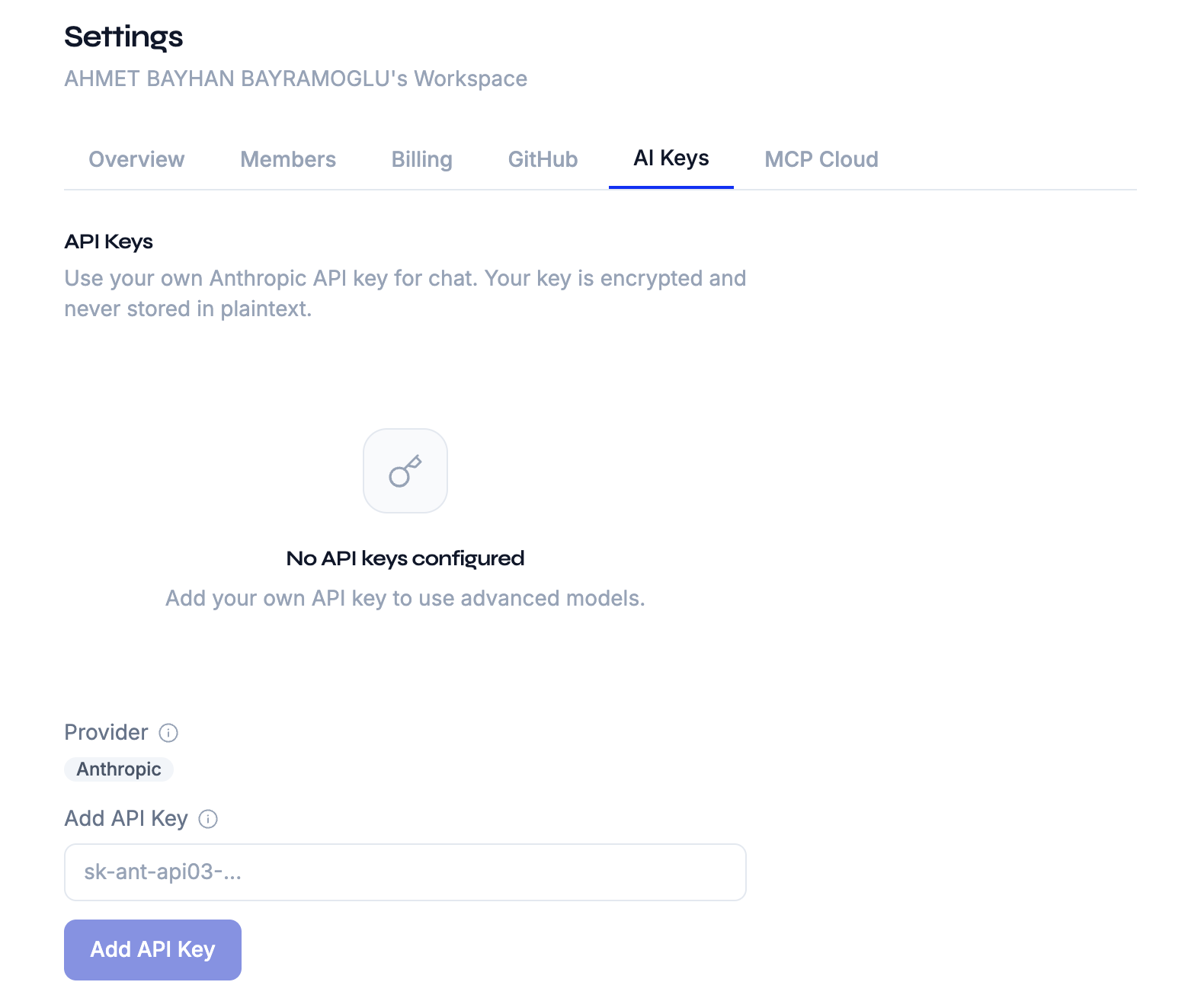
Adding Your Key
- Navigate to Workspace Settings > AI (the key is personal: only you see it)
- Paste your Anthropic API key into the key field
- Click Add API Key
Your key is encrypted at rest and visible only to you. It is used only for your own chat requests in this workspace; each member adds their own.
WARNING
BYOA is a paid feature, available on Pro and above. The Free plan uses only the studio-provided key and has 0 AI messages per month.
Plan Limits
| Plan | AI Messages/Month | BYOA |
|---|---|---|
| Free | 0 | Not available |
| Community (self-host) | Unlimited | Not available |
| Starter | 150 | Not available |
| Pro | 1,500 | Available |
| Enterprise | Unlimited | Available |
When using BYOA, studio message limits do not apply — you are billed directly by Anthropic for API usage.
Bounded Task Executor
The AI agent operates within a bounded task executor — a controlled environment with strict guardrails:
What the Agent Can Do
- Create, modify, and delete content models
- Add, update, and remove content entries (all four model kinds)
- Change publish status (publish, unpublish, archive)
- Manage vocabulary terms and register new locales
- Copy content between locales
- Search, upload, update, and delete media assets
- Initialize project structure
- List and manage branches, and check branch health
- Validate content and run schema/content health analysis
- Review form submissions (approve or reject)
What the Agent Cannot Do
- Access repositories outside the current project
- Bypass role-based permissions (the agent respects your role)
- Push directly to the main branch (always creates a review branch)
- Access external services or browse the internet
- Execute arbitrary code or shell commands
- Modify Git history or rebase branches
Safety Guarantees
- Every mutation creates a branch — Changes go to
cr/*branches, never directly tomain - Auditable — Every tool call is logged in the conversation and visible in branch diffs
- Reversible — Reject a branch to discard all changes
- Permission-scoped — The agent checks your role before executing tools
- Iteration-limited — Maximum 5 tool iterations per message to prevent runaway loops
- Context-limited — Tool results are truncated to manage the AI context window
Error Handling
If a tool call fails, the agent will:
- Show the error in the tool call card
- Explain what went wrong in its text response
- Suggest corrective action if possible
Common error scenarios:
- Validation failure — Content does not match the model schema
- Branch conflict — Another operation modified the same file
- Permission denied — Your role does not allow the requested action
- Rate limit exceeded — You have reached your plan's message limit
Streaming Architecture
The chat endpoint uses Server-Sent Events (SSE) for real-time streaming:
- Your message is sent as a POST request
- The server opens an SSE stream
- Events are emitted as they occur:
conversation— Conversation ID assignedtext— Response text chunktool_use— Tool call startedtool_result— Tool call completeddone— Conversation turn complete, affected resources reportederror— Error occurred during processing
This architecture provides a responsive experience — you see the agent's response building in real-time and can observe tool execution as it happens.
Next Steps
- Content Models — Understand the models the agent works with
- Content Editing — Use the content panel alongside the chat
- Branches & Review — Review changes the agent creates
- Keyboard Shortcuts — Navigate quickly with the command palette