

Workspaces
A workspace is the top-level organizational unit in Contentrain Studio. It groups your projects, team members, billing, and GitHub App installation into a single boundary.
Workspace Types
Studio has two workspace types:
Personal Workspace
Every user gets a personal workspace automatically when they sign up. This workspace:
- Is created during your first GitHub OAuth sign-in
- Has
type: primaryin the system - Cannot be deleted (it is tied to your account)
- Serves as your default workspace if no other is selected
Team Workspace
You can create additional team workspaces for collaboration:
- Has
type: secondaryin the system - Can be renamed, configured, and deleted
- Supports multiple members with different roles
- Has its own billing plan and GitHub App installation
Workspace Dashboard
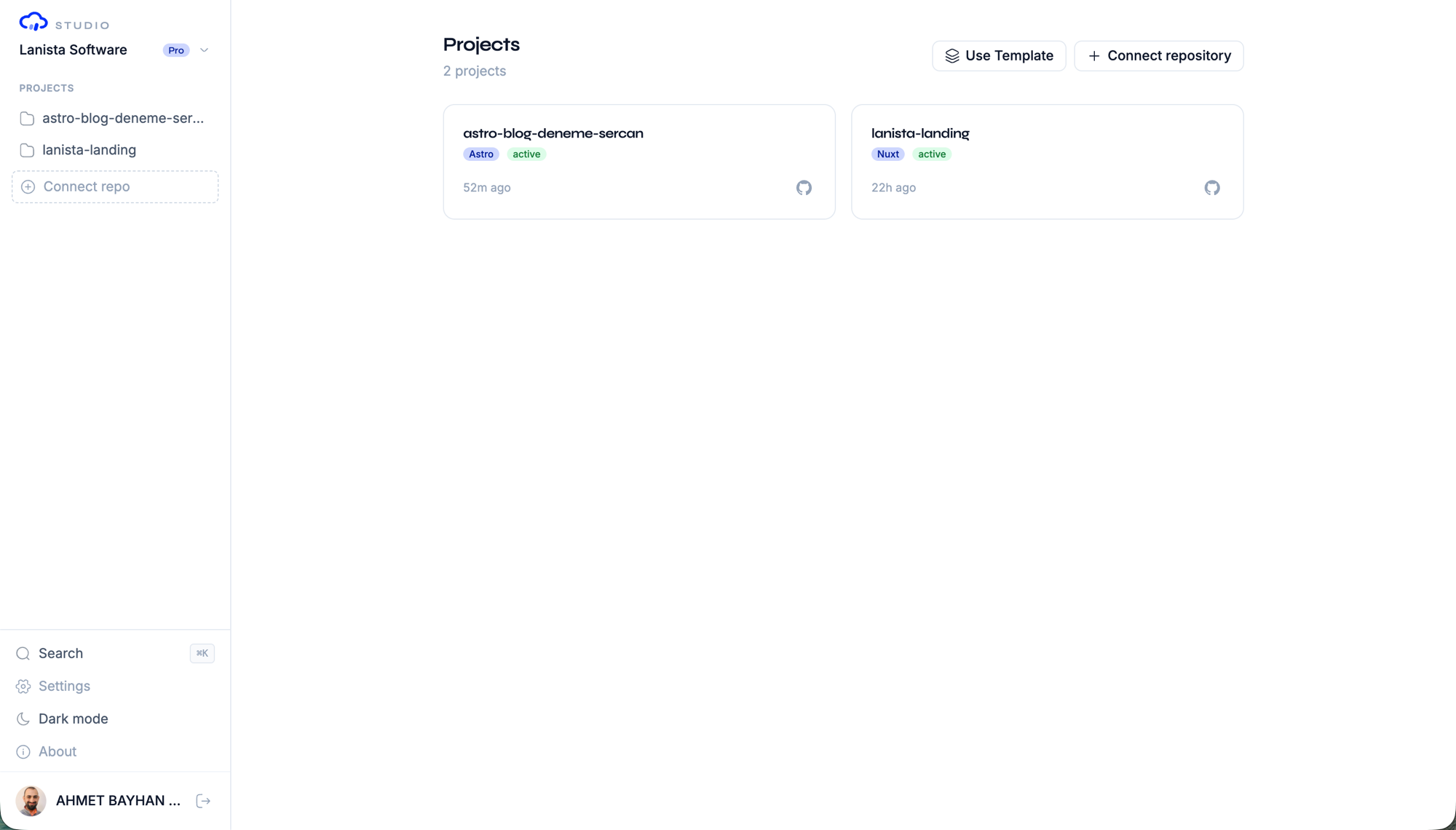
When you navigate to /w/:slug, you see the workspace dashboard. This page displays:
- A header with the workspace name and project count
- Two action buttons: Use Template and Connect Repository
- A grid of project cards showing your connected repositories
- Empty states when no GitHub App is installed or no projects exist
Empty States
The dashboard shows contextual empty states:
- No GitHub App installed — prompts you to install the Contentrain GitHub App with an illustration and action button
- App installed but no projects — prompts you to connect a repository or start from a template
Creating a Workspace
To create a new team workspace:
- Open the command palette with
Cmd+K(orCtrl+K) - Type "Create workspace" or use the workspace switcher
- Enter a name and URL slug for your workspace
- The workspace is created and you are switched to it
TIP
Workspace slugs must be unique and URL-safe. They form part of your workspace URL: /w/your-slug.
Switching Workspaces
You can switch between workspaces in several ways:
- Sidebar: Click the workspace name in the sidebar to open the switcher
- Command palette: Press
Cmd+Kand search for a workspace name - Direct URL: Navigate to
/w/:slugdirectly
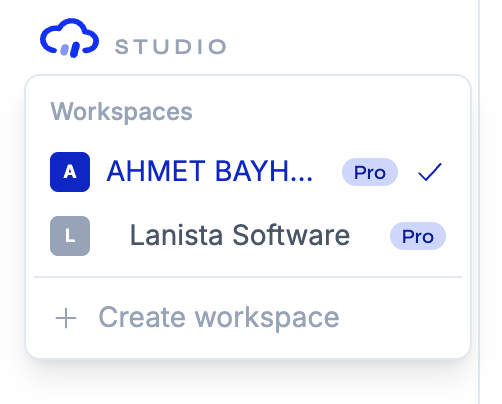
Studio remembers your last active workspace and restores it on your next visit.
Workspace Settings
Access workspace settings from the sidebar or by navigating to /w/:slug/settings. Settings are organized into tabs:
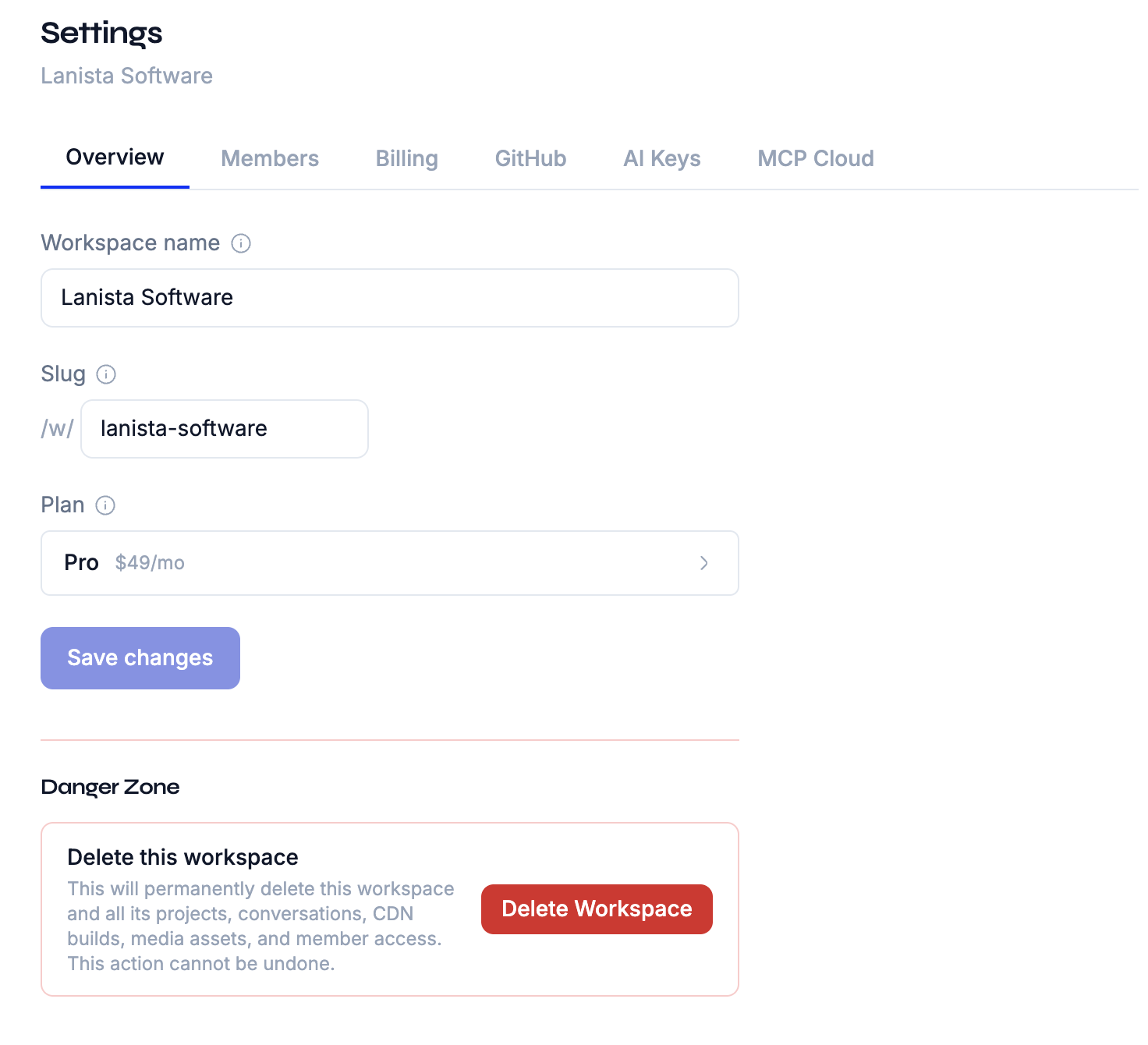
Overview
General workspace information:
- Workspace name (editable)
- Workspace slug (read-only after creation)
- Workspace type (primary or secondary)
- Danger zone: delete workspace (secondary workspaces only)
Members
Team management:
- View all workspace members and their roles
- Invite new members by email
- Change member roles (Admin or Member)
- Remove members
- Resend pending invitations
See Team Management for details.
Billing
Subscription and plan management:
- Current plan and billing state
- Trial status and days remaining
- Upgrade/downgrade options
- Stripe Customer Portal access
See Billing & Plans for details.
GitHub
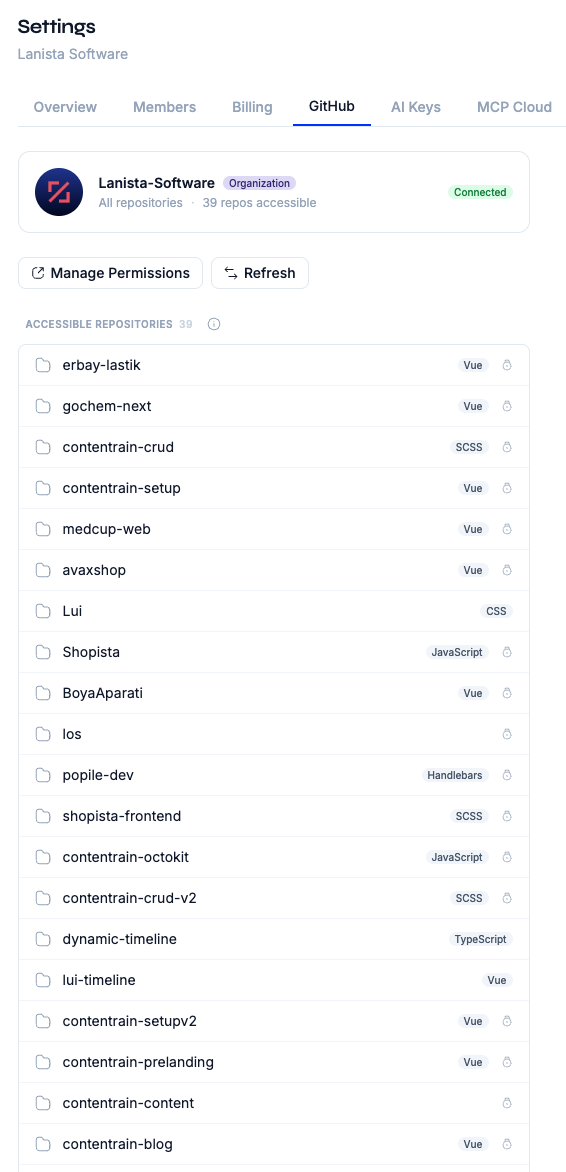
GitHub App integration:
- Current installation status
- Link to install or reconfigure the GitHub App
- Connected repositories overview
Connected apps
Third-party applications (Claude, ChatGPT, Codex) that signed in to the workspace with OAuth over remote MCP:
- Copy the workspace's remote MCP endpoint and the connect snippets
- Review connected apps and the scopes they were granted
- Disconnect an app at any time
API keys for CI and headless agents are not here: they live in each project's settings (Project settings → API keys). See Connected Apps and the MCP Connector.
AI
Your own Anthropic API key (BYOA, Bring Your Own API Key). It is personal: it is encrypted, visible only to you, and each member adds their own.
- Add your own Anthropic API key
- View and delete your key
Plans without BYOA see an upgrade prompt in this tab; Community Edition hides it.
See AI Chat for details.
Workspace Hierarchy
Understanding how workspaces relate to other entities:
User
 └── Workspace (billing & team boundary)
      ├── GitHub App Installation
      ├── Members (Owner, Admin, Member)
      ├── AI key per member (BYOA)
      ├── Billing (Stripe subscription)
      └── Projects (connected repositories)
           ├── Models
           ├── Content
           ├── Branches
           ├── Media
           ├── Forms
           ├── API keys (MCP keys, Conversation API keys)
           └── Webhooks
Key Rules
- A workspace owns its projects — deleting a workspace removes all its projects
- The workspace's GitHub App installation determines which repositories are available to connect
- Billing is per-workspace — each workspace has its own plan
- Members are invited at the workspace level and then assigned to specific projects
Deleting a Workspace
WARNING
Deleting a workspace permanently removes all its projects, content configurations, and member assignments. This action cannot be undone.
To delete a secondary workspace:
- Navigate to Settings > Overview
- Scroll to the Danger Zone
- Click Delete workspace
- Confirm the action
Personal (primary) workspaces cannot be deleted — they are removed only when you delete your account.
Transferring Ownership
Workspace owners can transfer ownership to another Admin member:
- Navigate to Settings > Members
- Find the Admin member you want to transfer to
- Use the transfer ownership action
- The previous owner becomes an Admin
TIP
Only Admin members can receive ownership transfers. Promote a Member to Admin first if needed.
Next Steps
- Projects — Connect repositories and create projects
- Team Management — Manage members and roles
- Billing & Plans — Understand plans and subscriptions