

Branches & Review
Every content mutation in Contentrain Studio follows a Git-native review workflow. Changes never go directly to your main branch — they are committed to short-lived feature branches, reviewed, and merged through a controlled pipeline.
Branch Architecture
Studio uses a three-tier branch model:
main (your production branch)
  ↑ merge
contentrain (SSOT branch — single source of truth)
  ↑ merge
cr/* (feature branches — individual operations)
The contentrain Branch
The contentrain branch is the single source of truth (SSOT) for all Contentrain-managed content. It acts as a staging area between feature branches and your main branch.
- All
cr/*branches merge intocontentrainfirst - The
contentrainbranch is then merged intomain - This two-step process keeps your main branch clean
Feature Branches (cr/*)
Every content operation — whether triggered by the AI chat, the content panel, or the API — creates a short-lived cr/* feature branch. Branch names follow a structured pattern:
cr/content/{modelId}/{locale}/{timestamp}-{hash}
cr/model/{modelId}/{timestamp}-{hash}
cr/init/{timestamp}-{hash}
These branches contain exactly one logical change:
- A content entry was created or updated
- A model definition was modified
- Content was copied between locales
- The project was initialized
The Review Workflow
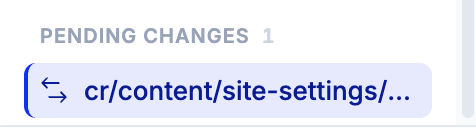
Pending review branches appear under Pending Changes in the project sidebar:
Two-Step Merge Flow
User/Agent Action
     ↓
Create cr/* feature branch
     ↓
Commit changes to branch
     ↓
Auto-merge to contentrain (SSOT)
     ↓
Review diff in Studio UI
     ↓
Merge to main  ──or──  Reject (delete branch)
Auto-Merge
When a content change is committed, the cr/* branch is automatically merged into the contentrain branch. This happens transparently — you do not need to take any action for the first merge step.
The auto-merge behavior depends on the tool:
| Tool | Merge Behavior |
|---|---|
init_project | Always auto-merges |
save_content | Follows project workflow setting |
save_model | Follows project workflow setting |
delete_content | Follows project workflow setting |
copy_locale | Follows project workflow setting |
merge_branch | Manual (user-initiated) |
reject_branch | Manual (user-initiated) |
Reviewing Changes
To review pending changes:
- Look at the Branches section in the sidebar
- Click on any branch to open the branch diff viewer
- Review the visual diff showing exactly what changed
Branch Diff Viewer
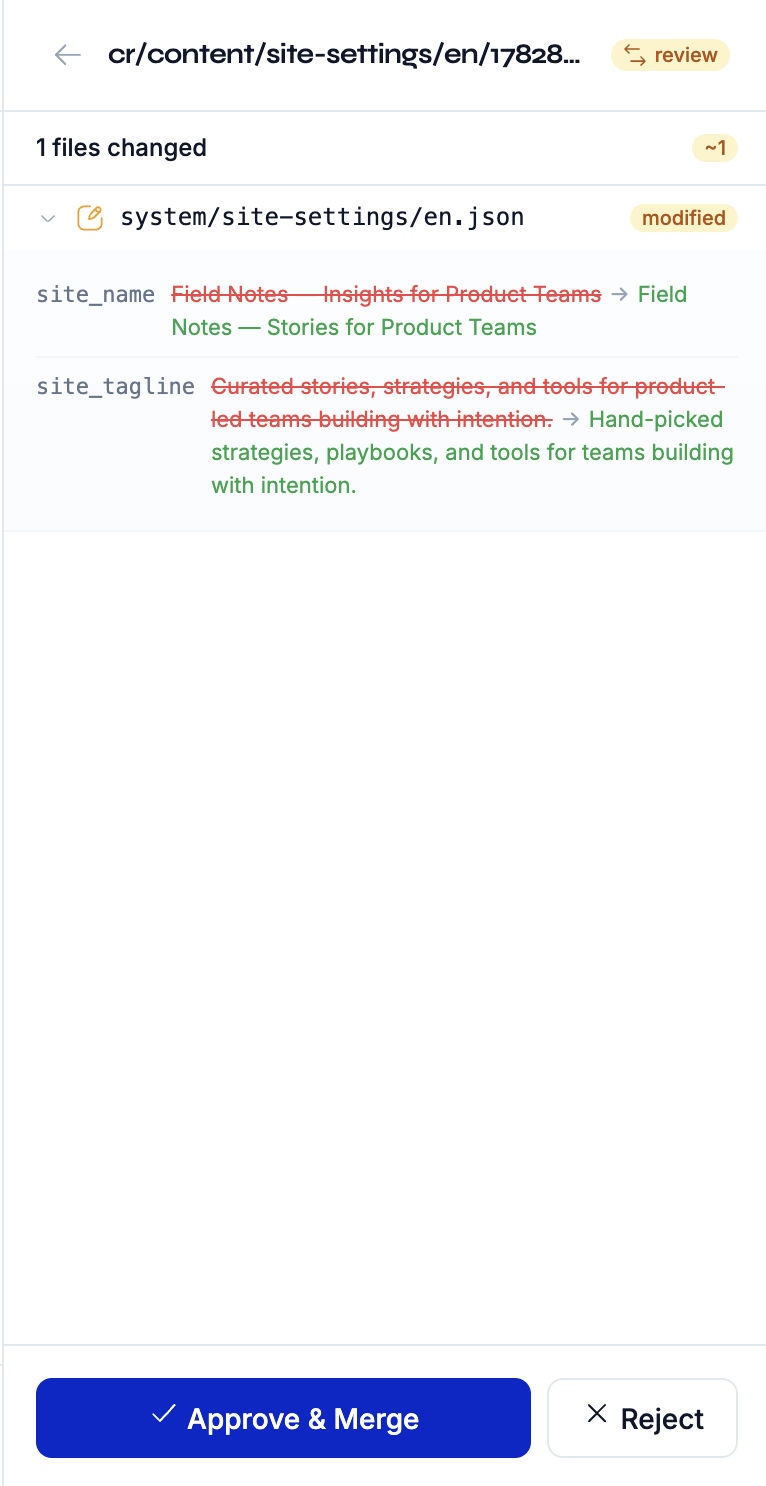
The branch diff viewer shows a detailed comparison of changes on a branch.
What the Diff Shows
Each branch diff includes:
- Branch name — the full
cr/*branch name - File list — every file that was added, modified, or removed
- Content comparison — before/after view of each file's content
File Status Indicators
| Status | Meaning |
|---|---|
| Added | A new file was created |
| Modified | An existing file was changed |
| Removed | A file was deleted |
Content Diff
For each file, the diff viewer shows:
- Before: The content before the change (null for new files)
- After: The content after the change (null for deleted files)
Content is displayed as structured data, making it easy to see exactly which fields changed.
Merging Changes
To merge a branch into your main branch:
From the UI
- Open the branch diff viewer by clicking the branch in the sidebar
- Review the changes
- Click Merge to accept the changes
- The branch is merged:
contentrainbranch advances tomain - The feature branch is deleted
- A success toast confirms the merge
From the Chat
Ask the agent to merge a branch:
"Merge the branch cr/content/blog-posts/en/1774800862-27c1"Or more generally:
"Merge all pending branches"
"List branches and merge the latest one"
Merge Conflicts
If a merge conflict occurs (another process modified the same files), Studio will report the conflict. You can resolve it by:
- Rejecting the conflicting branch
- Making the changes again (which creates a new branch with the latest base)
WARNING
Studio cannot automatically resolve merge conflicts. If a conflict is detected, the merge will fail and you will see a message indicating that manual resolution on GitHub is needed.
Rejecting Changes
To discard changes on a branch:
From the UI
- Open the branch diff viewer
- Click Reject
- The branch is deleted
- No changes are applied to your repository
From the Chat
"Reject the branch cr/content/blog-posts/en/1774800862-27c1"TIP
Rejecting a branch is non-destructive to your existing content. It simply discards the proposed changes by deleting the feature branch.
Branch Health
Studio monitors branch health to keep your repository clean:
- Pending branch count — How many
cr/*branches are waiting for review - Stale branches — Branches that have been open for an extended period
- Cleanup — Bulk cleanup of merged or stale branches
Branch Cleanup
To clean up old branches:
- Use the command palette or sidebar to access branch management
- Studio identifies branches that can be safely removed
- Confirm the cleanup action
The cleanup process removes cr/* branches that have already been merged or are no longer needed.
TIP
Regularly reviewing and merging or rejecting branches keeps your project healthy. A large number of pending branches can indicate bottlenecks in your content workflow.
Branch Naming Convention
Understanding branch names helps you identify what changed:
cr/content/blog-posts/en/1774800862-27c1
│  │       │          │  │
│  │       │          │  └─ Timestamp + hash (unique ID)
│  │       │          └─── Locale
│  │       └────────────── Model ID
│  └────────────────────── Operation type (content, model, init)
└───────────────────────── Contentrain prefix
Permissions
Branch operations respect your role:
| Role | View Branches | Merge | Reject |
|---|---|---|---|
| Owner | Yes | Yes | Yes |
| Admin | Yes | Yes | Yes |
| Editor | Yes | No | No |
| Reviewer | Yes | Yes | Yes |
| Viewer | Yes | No | No |
Next Steps
- AI Chat — Use the agent to manage branches
- Content Editing — Make changes that create branches
- Team Management — Configure who can merge and reject