

Keyboard Shortcuts
Contentrain Studio includes a command palette and keyboard shortcuts for fast navigation. The command palette is a universal search and action hub that works from anywhere in the application.
Command Palette
Press Cmd+K (macOS) or Ctrl+K (Windows/Linux) to open the command palette.
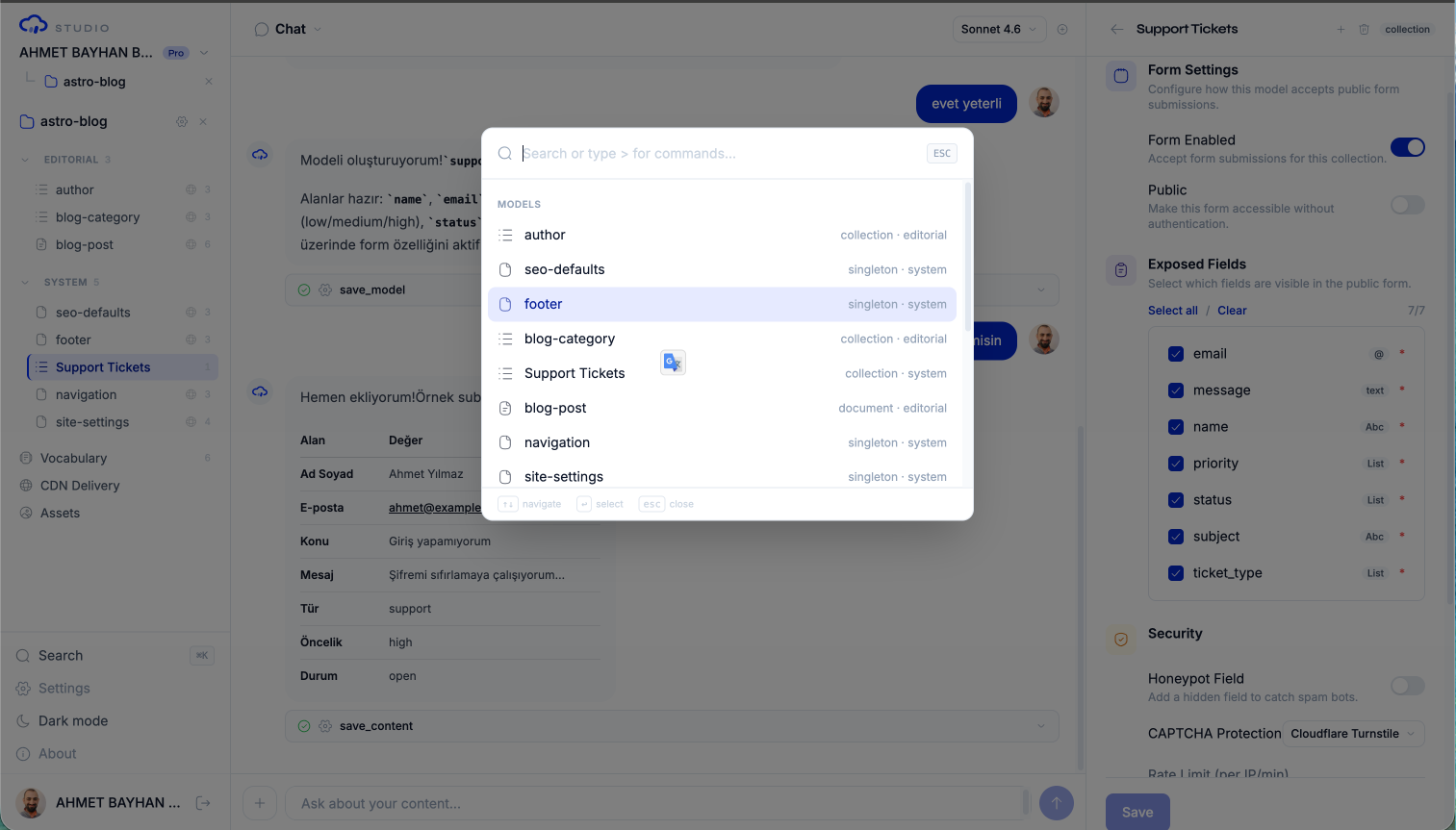
The palette provides:
- Universal search across models, entries, vocabulary, branches, conversations, projects, and workspaces
- Command execution for common actions
- Recent items for quick access to previously used items
Search Modes
The command palette supports prefix-based search modes:
| Prefix | Mode | Description |
|---|---|---|
| (none) | Global | Search everything — models, entries, vocabulary, branches, conversations, projects, workspaces |
> | Commands | Filter to actionable commands only |
# | Vocabulary | Search vocabulary terms by key or value |
! | Branches | Search content branches by name |
@model | Model | Search within a specific model's entries (e.g., @blog-posts) |
? | Help | Show search mode help and keyboard shortcuts |
Global Search
Type anything without a prefix to search across all categories. Results are grouped by type:
- Recent — Previously accessed items (shown when no query)
- Commands — Matching actions (shown when query is 2+ characters)
- Models — Content models matching the query
- Vocabulary — Vocabulary terms matching key or value
- Branches — Branches matching the name
- Conversations — Past conversations matching the title
- Projects — Projects matching the repository name
- Workspaces — Workspaces matching name or slug
Command Mode (>)
Type > followed by your search to filter to commands only:
> dark mode     → Toggle dark/light mode
> settings      → Open workspace settings
> connect       → Connect a repository
> new conv      → Start a new conversation
Vocabulary Mode (#)
Type # to search vocabulary terms:
# navigation    → Find vocab terms with "navigation"
# home          → Find terms with "home" in key or value
Branch Mode (!)
Type ! to search branches:
! blog          → Find branches related to blog content
! merged        → Find branches with "merged" in the name
Model Mode (@)
Type @ followed by a model ID to search within that model:
@blog-posts     → Show blog-posts model with entry count
@team-members   → Show team-members model
Help Mode (?)
Type ? to see all available search modes and their prefixes.
Available Commands
Appearance
| Command | Keywords | Action |
|---|---|---|
| Toggle dark mode | theme, dark, light, mode, appearance | Switch between light and dark themes |
Navigation
| Command | Keywords | Action |
|---|---|---|
| Sign out | sign out, logout, exit, quit | Sign out of Studio |
| Switch workspace | workspace, switch, change, home | Return to workspace list |
| Create workspace | workspace, new, create | Create a new workspace |
Workspace
| Command | Keywords | Action |
|---|---|---|
| Settings | settings, workspace, preferences | Open workspace settings |
| Members | members, team, invite, people, roles | Open members management |
| GitHub | github, installation, repos, git | Open GitHub settings |
| AI | ai, keys, api, byoa, anthropic, claude | Open your AI key (Workspace Settings → AI) |
| Connect repository | connect, repo, repository, new project, add project | Open connect repo dialog |
Project (available when inside a project)
| Command | Keywords | Action |
|---|---|---|
| Project overview | overview, home, dashboard, back | Return to project overview |
| New conversation | chat, new, conversation, clear | Start a fresh conversation |
| Vocabulary | vocabulary, terms, glossary, dictionary | Open vocabulary editor |
| CDN Delivery | cdn, delivery, api, build | Open CDN panel |
| Media library | media, assets, images, files, library, upload | Open media library |
| Project health | health, score, validation, warnings, quality | Open health dashboard |
| Project settings | settings, project, config, configuration | Open project settings |
| Webhooks | webhooks, hooks, events, notifications, integrations | Open webhook settings |
| API keys | conversation, api, keys, external, bot, integration | Open the project's API keys tab (MCP keys and Conversation API keys) |
| MCP keys | mcp, cursor, agent, keys, ci, claude code | Open the project's API keys tab (MCP keys section) |
AI Model Selection (available when inside a project)
| Command | Keywords | Action |
|---|---|---|
| Switch to Haiku 4.5 | haiku, fast, economic, model, ai, switch | Set AI model to Haiku 4.5 |
| Switch to Sonnet 4.6 | sonnet, balanced, model, ai, switch | Set AI model to Sonnet 4.6 |
| Switch to Sonnet 5 | sonnet, balanced, newest, model, ai, switch | Set AI model to Sonnet 5 |
| Switch to Opus 4.8 | opus, capable, best, model, ai, switch | Set AI model to Opus 4.8 |
Agent Actions (available when inside a project)
These commands send a pre-written prompt to the AI chat to kick off a content operation:
| Command | Keywords | Prompt Sent |
|---|---|---|
| Add model | create, model, new, schema | "Create a new content model. Ask me what kind of content I want to manage." |
| Add entry | create, entry, new, content, add | "Create a new entry. Ask me which model and what content." |
| Translate content | translate, locale, language, i18n | "Translate content to another locale. Ask me which model and target language." |
| Validate schema | validate, schema, check, integrity | "Run schema validation and health check on this project. Report any issues found." |
| SEO audit | seo, audit, meta, optimization | "Run an SEO audit on all content models. Check for missing meta descriptions, titles, and slugs." |
| Analyze content quality | analyze, quality, score, report | "Analyze content quality across all models. Give me a quality score and improvement suggestions." |
| Check translations | locale, parity, translations, missing, i18n | "Check locale parity — find missing translations across all models and locales." |
| Find stale content | stale, old, outdated, unused, cleanup | "Find stale content that hasn't been updated recently. Highlight entries that may need review." |
| Upload media | upload, media, image, url, file | "Upload media from a URL. Ask me for the URL and details." |
| Copy locale | copy, locale, bootstrap, language, duplicate | "Bootstrap a new locale by copying content from the source locale. Ask me which source and target languages." |
Recent Items
When you open the command palette without typing anything, it shows up to 8 recently accessed items. Recent items are stored in your browser's local storage and persist across sessions.
Clicking any result in the command palette adds it to your recent items for quick future access.
Keyboard Navigation
Within the command palette:
| Key | Action |
|---|---|
Arrow Up / Arrow Down | Navigate between results |
Enter | Execute the selected result |
Escape | Close the palette |
| Type anything | Filter results |
Quick Reference
| Shortcut | Action |
|---|---|
Cmd+K / Ctrl+K | Open command palette |
Escape | Close palette or cancel current action |
TIP
The command palette is context-aware. When you are inside a project, project-specific commands (vocabulary, CDN, media, health) become available. When you are on the workspace dashboard, workspace commands are shown.
Next Steps
- AI Chat — Use the chat interface for content operations
- Projects — Navigate the project workspace
- Workspaces — Switch between workspaces