

Forms
Contentrain Studio lets you accept public form submissions for your collection models. Visitors submit data through a public API endpoint, and your team reviews, approves, or rejects submissions before they become content entries.
Availability
Core forms — public submit/config endpoints, the submission review queue, CAPTCHA, and auto-approve — work in every deployment, including the self-hosted Community Edition (the forms.enabled feature is not Enterprise-gated). A few extras are gated:
- Webhook notifications on submission — Enterprise Edition (
forms.webhook_notification). - File upload in forms — Enterprise Edition and on the roadmap (not yet available).
- Spam filter — Enterprise Edition and on the roadmap (not yet available).
- Email notifications — on the roadmap (not yet available).
How Forms Work
Public Form → Submit API → Submission Queue → Review → Content Entry- You enable forms on a collection model and configure validation rules
- A public API endpoint is generated for that model
- External forms (your website, app, etc.) POST data to the endpoint
- Submissions land in a review queue with
pendingstatus - Your team approves, rejects, or marks submissions as spam
- Approved submissions can be converted to content entries
Enabling Forms on a Model
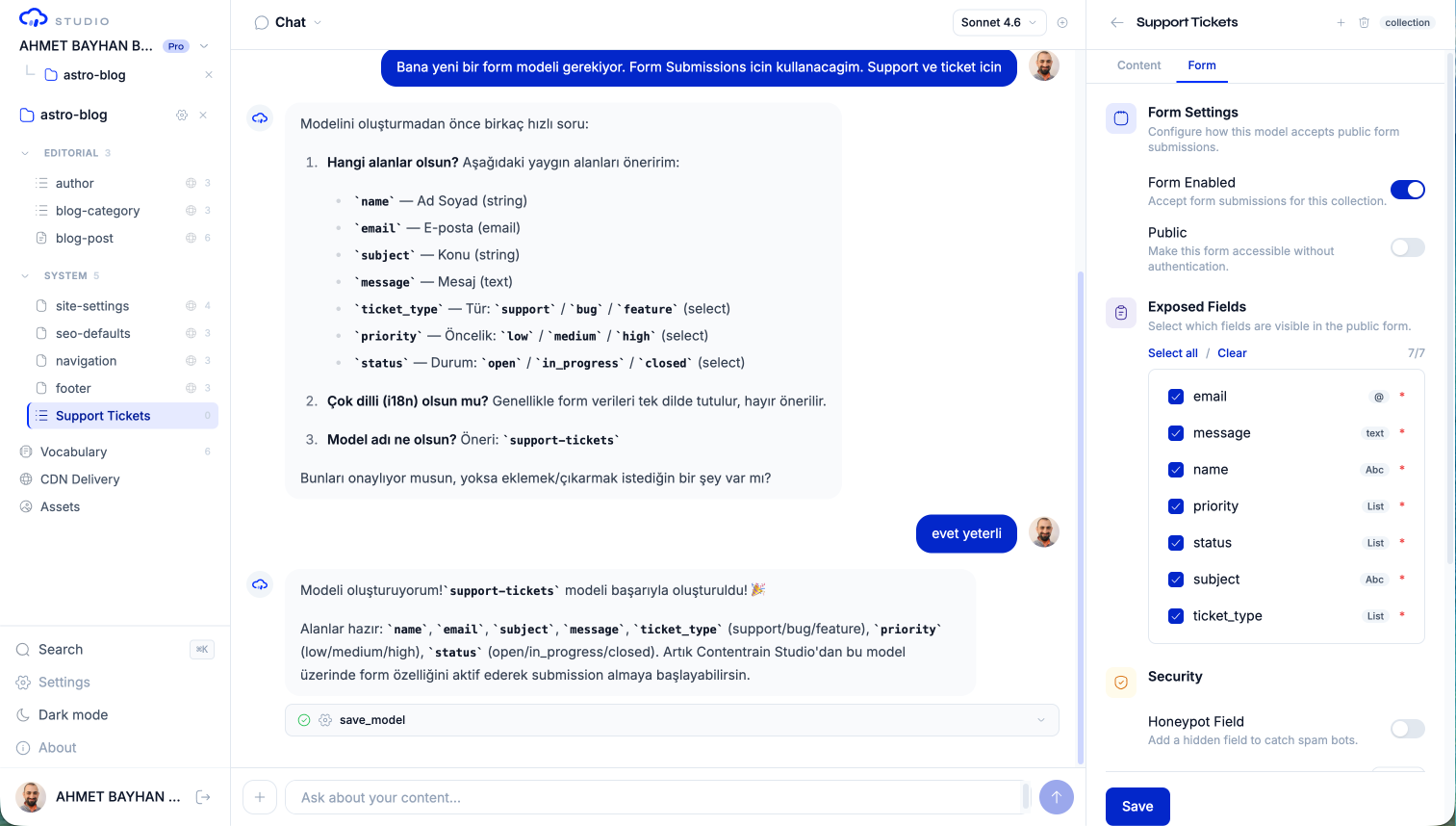
To enable forms for a collection model:
- Open the model in the content panel
- Navigate to the model's form configuration section
- Toggle Enable form submissions
- Configure validation rules, field mapping, and submission limits
TIP
Only collection models support form submissions. Singletons, documents, and dictionaries cannot accept external submissions.
Public Form API
Once enabled, each model gets a public submission endpoint:
POST /api/forms/v1/{projectId}/{modelId}/submitRequest Format
The endpoint reads only data (the submitted field values), an optional captchaToken, and the honeypot field _hp. Forms are single-locale (en) — any locale field in the body is ignored.
{
  "data": {
    "name": "Jane Smith",
    "email": "jane@example.com",
    "message": "I'd like to learn more about your product."
  }
}
Response
On success, the endpoint returns the configured success message:
{
  "success": true,
  "message": "Thank you for your submission!"
}
On a validation failure, it returns the per-field errors:
{
  "success": false,
  "errors": [
    { "field": "email", "message": "email must be a valid email" }
  ]
}
Configuration Endpoint
You can fetch the form configuration (field definitions, validation rules) from the public API:
GET /api/forms/v1/{projectId}/{modelId}/configThis is useful for dynamically building forms on your frontend based on the model schema.
Submission Management
Viewing Submissions
Navigate to the form submissions view by selecting a form-enabled model and opening its submissions tab. The list shows:
- Submission data
- Status badge (pending, approved, rejected, spam)
- Source IP address
- User agent
- Referrer URL
- Locale
- Submission date
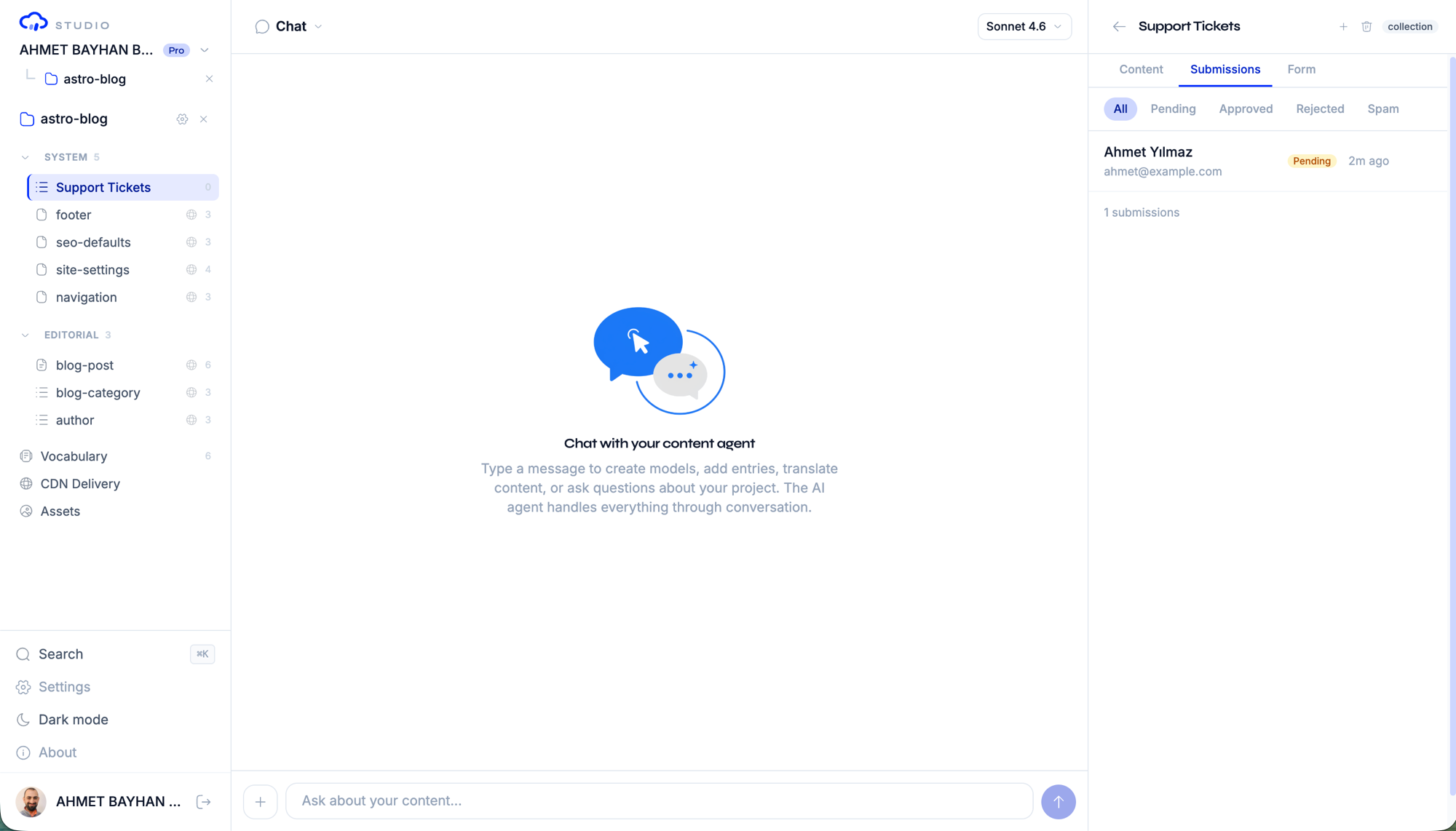
Submission Statuses
| Status | Description |
|---|---|
| Pending | New submission awaiting review |
| Approved | Reviewed and accepted |
| Rejected | Reviewed and declined |
| Spam | Marked as spam |
Reviewing a Submission
Click any submission to open the detail modal:
- Review all submitted field data
- Choose an action:
- Approve — Mark as approved (optionally convert to content entry)
- Reject — Decline the submission
- Spam — Flag as spam
- Delete — Permanently remove the submission
Bulk Actions
Select multiple submissions using checkboxes and perform bulk actions:
- Approve all — Approve selected submissions
- Reject all — Reject selected submissions
- Mark as spam — Flag selected as spam
- Delete all — Permanently remove selected submissions
Filtering and Sorting
Filter submissions by:
- Status — pending, approved, rejected, spam
- Sort order — newest first or oldest first
Pagination is available for large submission volumes.
Converting Submissions to Content
When you approve a submission, you can optionally convert it into a content entry:
- Approve the submission
- The submitted data is mapped to the model's field schema
- A new content entry is created on a review branch
- The entry goes through the standard branch review workflow
The submission's entry_id field is populated with the newly created content entry ID, linking the submission to its resulting content.
Form Configuration
The form configuration section lets you control:
| Setting | Description |
|---|---|
| Enabled | Toggle form submissions on/off |
| Field mapping | Map form fields to model fields |
| Required fields | Which fields are required in submissions |
| Captcha | Enable CAPTCHA protection (Cloudflare Turnstile, Starter+) |
| Auto-approve | Automatically approve submissions (Starter+) |
| Notifications | Send email notifications on new submissions (roadmap — not yet available) |
| Webhook notification | Trigger a webhook on new submissions (Enterprise Edition) |
| Spam filter | AI-powered spam detection (Enterprise Edition, roadmap — not yet available) |
Security
Form submissions include metadata for security review:
- Source IP — The IP address of the submitter
- User Agent — The browser or client identifier
- Referrer — The referring page URL
WARNING
The public form API is rate-limited to prevent abuse. Excessive submissions from a single IP will be throttled.
Plan Limits
| Feature | Free | Starter | Pro | Enterprise |
|---|---|---|---|---|
| Form-enabled models | 0 | 1 | 15 | Unlimited |
| Submissions/month | 0 | 100 | 3,000 | Unlimited |
| File upload in forms | No | No | No | No |
| CAPTCHA | No | Yes | Yes | Yes |
| Auto-approve | No | Yes | Yes | Yes |
| Spam filter | No | No | No | No |
| Webhook notification | No | Yes | Yes | Yes |
The CAPTCHA and Auto-approve columns reflect features that ship today. Webhook notification requires the Enterprise Edition. File upload and the Spam filter are Enterprise-Edition roadmap features and are not yet available.
Next Steps
- Content Models — Set up models for form submissions
- Webhooks — Get notified when forms are submitted
- Content Editing — Manage converted form entries