

Connected Apps
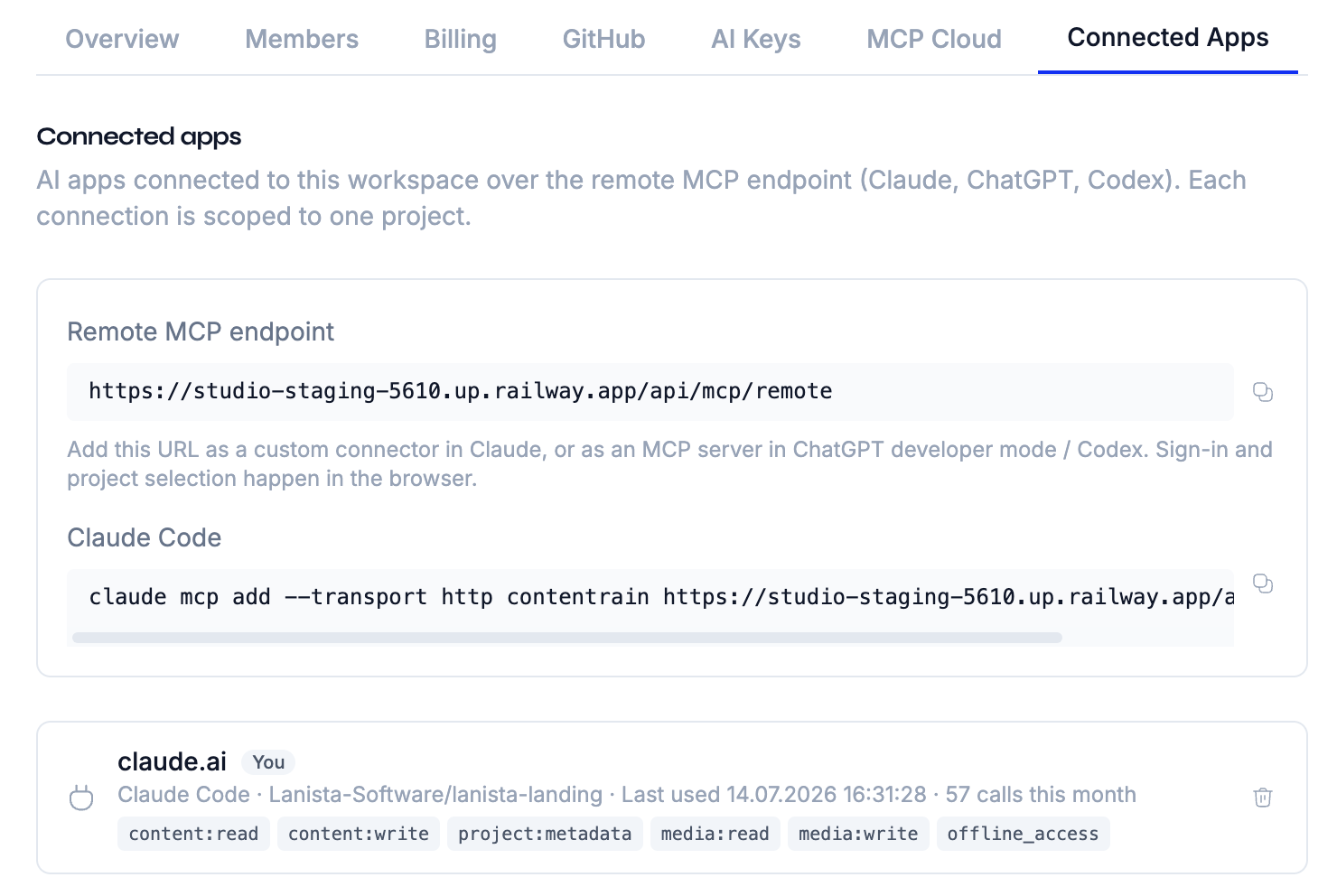
Connected Apps lists every AI app that has connected to your workspace through the remote MCP connector. Each entry is an active OAuth grant — an app (such as Claude or ChatGPT) that a member authorized in the browser, scoped to a single project. This tab is where you review those connections and disconnect any you no longer trust.
Managed deployments only
Connected Apps appears only on managed-pair deployments, where the remote MCP OAuth surface runs. On a self-hosted deployment that uses API-key access, the panel explains that the remote MCP endpoint is unavailable and points you to Project settings → API keys instead. Remote MCP connections must also be included in your plan.
Where to find it
Open Workspace Settings → Connected apps. The tab sits alongside Members, Billing, GitHub, and AI. At the top of the panel you'll find your workspace's remote MCP endpoint and a ready-to-copy claude mcp add command (server name contentrain-remote, the same name in the Codex config) for connecting a new app; below that is the list of apps currently connected.
What each connection shows
Every row corresponds to one OAuth grant:
| Field | Description |
|---|---|
| App | The client app's host (e.g. claude.ai), name, and logo, as declared during authorization. |
| Project | The repository the connection is scoped to — an app grant is bound to a single project. |
| Scopes | The permissions granted, shown as tags (for example content:read, content:write). |
| Last used | When the app last called the endpoint, or Never used if it hasn't yet. |
| Calls this month | The number of requests this grant has made in the current calendar month. |
| You badge | Marks connections that you authorized, so you can tell your own apps apart from teammates'. |
Who can see and manage what
Visibility follows your workspace role:
| Role | Sees | Can disconnect |
|---|---|---|
| Owner / Admin | Every grant in the workspace | Any grant |
| Member | Only their own grants | Only their own grants |
A member's connection is theirs to manage, not to browse — members never see the apps other people have connected.
Disconnecting an app
To revoke a connection, click Disconnect on its row and confirm.
Disconnecting revokes the grant's entire refresh-token family and deletes its live access tokens immediately. The connected app's next request fails cleanly with an invalid_grant response, and the app is prompted to re-authorize from scratch — there is no lingering access.
WARNING
Disconnecting takes effect at once and cannot be undone. If the app is still in use, whoever relies on it will need to reconnect and re-authorize through the browser. Reconnecting mints a brand-new grant.
See also
- MCP Connector — how the remote MCP OAuth flow works and how to connect an app.
- Workspaces API reference — the endpoints that back listing and revoking connected apps.