
Introduction
The Asset Manager is a tool for managing your digital assets within projects. You can upload image assets, videos, and other formats storing directly to your project's GitHub repository through the interface and use them wherever needed in your project.
When creating custom roles with private permissions, you can also limit access to the assets in the project, ensuring full control and security for large content teams.
Assets Table
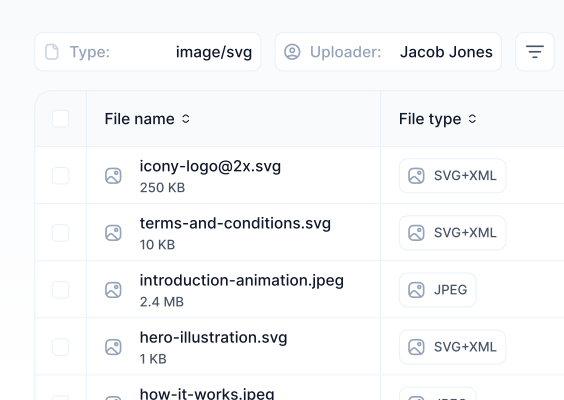
Uploaded digital assets are listed in a table. You can customize this table by adding or removing columns to display the information you need.
To edit the details of an asset, click the edit icon on the right side of the table. You can filter your image assets by type and see who uploaded each asset, allowing you to filter by uploader.
To delete multiple images in bulk, select the checkboxes on the left side of the table and click the delete button that appears above.
Uploading an Asset
After logging into your project, navigate to the Asset Manager via the Assets tab on the left.
If no assets have been uploaded yet, you will see the screen below. Click the "Add asset" button to proceed.
To upload an asset, you can drag and drop a file from your computer into the designated area, or click the "Click here" button to open the File Manager and select a file.
You can also add alt text to your uploaded assets to make your content SEO-friendly.
Click the "Upload" button in the modal to complete the upload process.
Once uploaded, your asset will appear in the table as shown below.
Asset Details
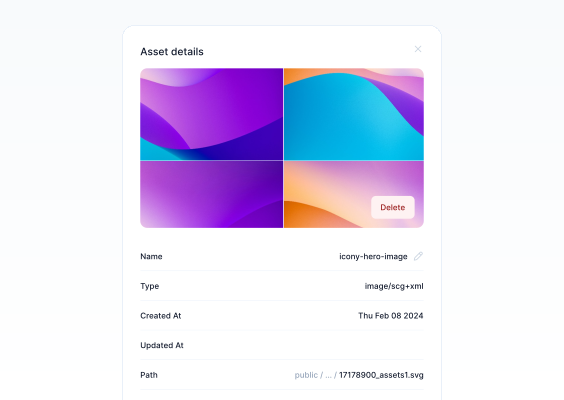
You can view details of your assets such as name, alt text, path, creation date, type, and size.
Easily edit the name and alt text of your asset from the details sidebar.
If you need more details, please see the Asset Manager walkthrough.