Introduction
First of all, each project within Contentrain is linked to your workspace and must be integrated to a Git repository.
Repository Preferences
You can set up your projects in either Public or Private repositories. However, please note that projects installed into a Private repository require paid plan.
Before starting a project setup, ensure that the Workspace setup, meaning the provider installation, is complete. See, how to work with Workspaces.
Contentrain offers three primary methods to create a project which are simplified to facilitate developers' and content creators’ work.
Manual Project: Ideal for users familiar with project setup in Contentrain. Creating a project manually requires you to create all content models yourself, allowing for customization by the project owner as needed.
Starter Project: Recommended for new users of Contentrain or those who wish to try out how the platform works with various Frontend Frameworks using a starter template. Starting with a Starter Template, you get a project with all Content Models pre-built and integrated to the Frontend Code, templates are ready for immediate deployment on platforms like Vercel, Netlify, or Firebase.
Template Market: This feature is currently under development. Once available, users will be able to start projects with free or premium templates from the Template Market, which are integrated with Contentrain. When users start using these templates, they can make changes to the code base according to their needs or modify the content models as they wish.
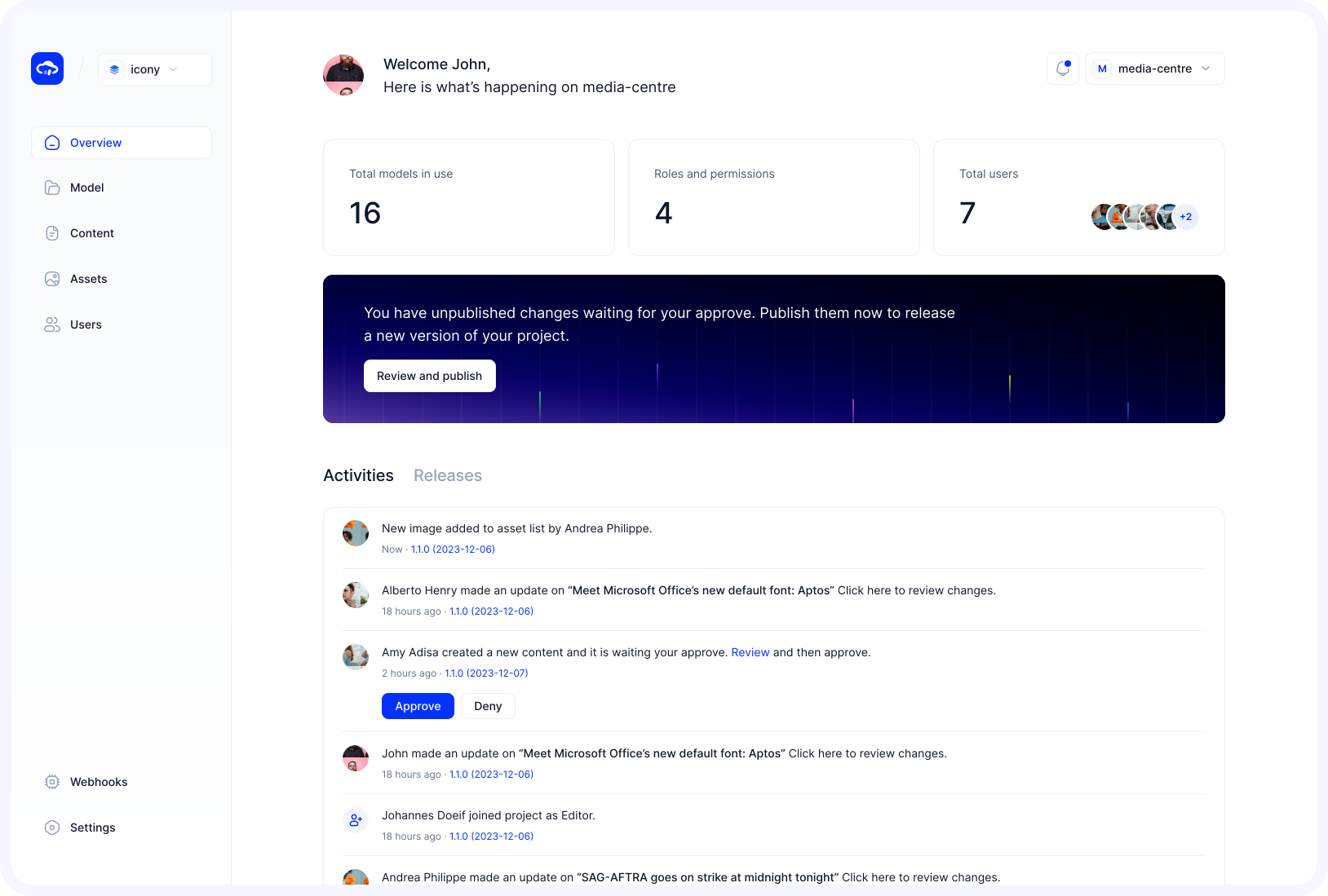
Project dashboard
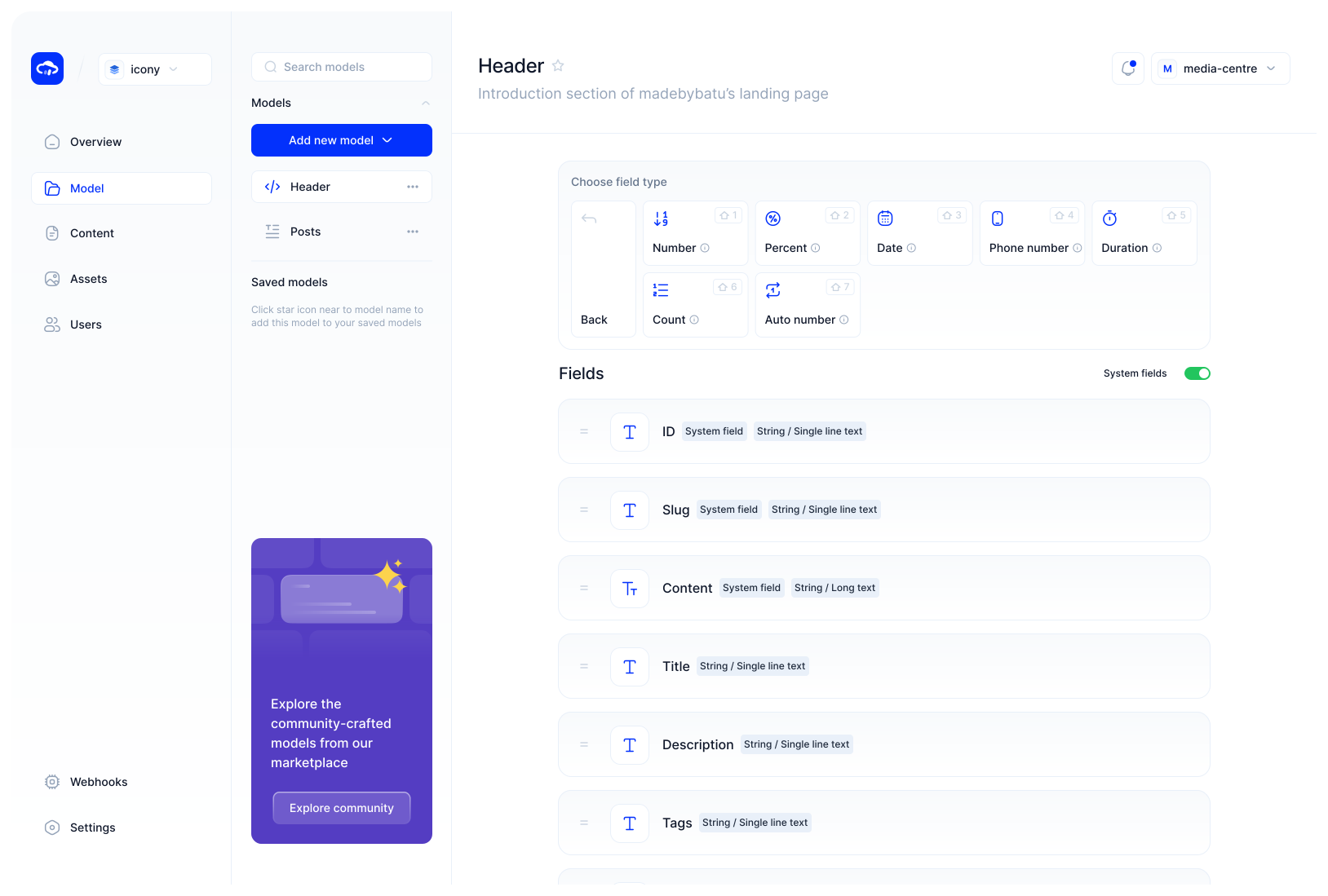
| Section | Function |
|---|---|
| Overview | Panel for general information and key actions. |
| Activities | Section listing the latest activities in the project. |
| Releases | (Coming Soon) |
| Content | Area to manage project content. For more details, see Content. |
| Models | Manage content models for your project. For more information, visit Model. |
| Assets | Manage your project’s media assets. See Assets for further details. |
| Users | Control over project user access and permissions. For more, see Users. |
| Webhooks | Set up and manage webhooks for your projects. For more information, see Webhooks. |
| Settings | Manage various project settings. |
Creating a Project
If you haven't yet started a new project within your workspace, you can quickly begin the setup by selecting one of the cards at the bottom of the workspace overview screen.
If you've previously created a project and looking to start a new one, click the "Create new" button on the workspace overview screen. From the dropdown menu that appears, select a way of start a project you're looking to create and proceed.
1- Creating a manual project
If you need to start a project by creating your own content models from scratch, you can begin with the manual project installation step and customize the structure of your project as you wish.
In your Workspace Overview, under the "Start your First Project with" section, you can begin your project setup by clicking on the "Start a project" button on the Manual Installation card.
Step 1: Select Provider
Since the Provider selection is defined at the beginning while setting up Workspaces in Contentrain, there'll be no need to select a provider for each project. The Git provider you choose while setting up your Workspace will be the default provider for your projects.
Step 2: Select Account
The project you set up will be installed on the Git account you specified during the setup of your Workspace. If you need to continue with a different Git account, you can proceed with Workspace settings.
Step 3: Select Repository
The repositories within your Git account where you can set up your project will be listed on this screen. Mark the Repository you wish to proceed with and move to the next step by clicking the "Next" button.
If you want to view and manage the repositories permitted under your account, click on the "Workspace Account" button to see and manage your allowed repos. Your current account information is visible in this area.
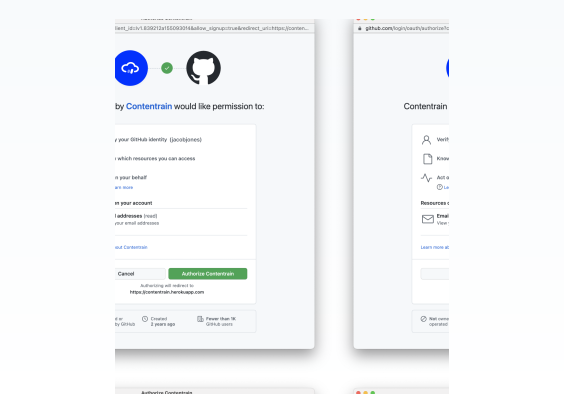
To grant permission to all repositories, select "All repositories". To give access to only specific repositories, choose "Only selected repositories" then mark the desired repositories from the dropdown that appears.
Repository Installment
You cannot install a project in a repository that already contains a Contentrain project. To install in your chosen repository, ensure it does not have an existing Contentrain project. If you need to delete an existing project, you can watch the Project Deletion walkthrough video.
Step 4: Project Basics
Here you can name your project, select the languages you'll use, set a static path for media management, and determine the merge options on GitHub. After making your selections, click 'Next' to finalize your project setup.
Project Name
Enter the name of your project here, within a 1-30 character range. Please do not use special characters, with the exception of hyphens (-) and underscores (_).
Languages
Add different languages for content creation in your project here, and modify them later in Project Settings if needed. The number of languages you can add depends on your paid plan allowance. For plan details, see pricing.
Static Path
Contentrain provides built-in asset manager support for managing your media. You can determine the storage path for your project's static assets in this section. To learn about managing your assets, see Assets. These settings can be changed later in Project Settings.
Asset Manager Usage
To use the asset manager, you must have a Lite plan or higher. You can find more details here: Pricing.
Manage Merge Requests
Contentrain operates on a dedicated branch, simplifying content management and integration processes. With your selections, you can determine how your content will be managed, when, and how it will go to the Main branch, therefore you can manage the content on separate layers from the Code base.
Branch Management Options
You can change your project's Branch Management settings within the limits of your plan. You can check the plan details here.
I will manage merge requests myself. Contents will be under the Contentrain branch. FREE (Default)
Contentrain will create and approve pull and merge requests automatically when there is change on the content (Paid Feature)
Contentrain will create pull and merge requests when there is change on the content (Paid Feature)
Deployment Tip
Regarding 2nd and 3rd merge options, the pull request in Contentrain creates a preview link when a change is made. The following two merge options simplify the integration process with deployment platforms such as Netlify and Vercel.

After setting up, your project will be ready in a few seconds, and you will be redirected to the project overview screen. From here, you can view details about your project's content, model, assets, and users.
2- Creating a starter project
By setting up a project using Starters, created with frameworks like Nuxt.js, Next.js (Astro, Docusaurus, Svelte… Coming Soon!), you can experience how Contentrain works.
Starting with a Starter Template, you get a project with all Content Models pre-built and integrated to the Frontend Code, ready for immediate deployment on platforms like Vercel, Netlify, or Firebase.
The main difference between Manual installation and Starter project: If you want to use Contentrain on a Git repository where you have your own project, you can choose Manual project installation. It’ll be integrated to the repo of your choice.
In your Workspace Overview, on the "Start your First Project with" section, you can start your project setup by clicking on the "Start a project" button found on the Starter Project card.
Step 1: Select Provider
Since the Provider selection is defined at the beginning while setting up Workspaces in Contentrain, there's no need to select a provider for each project. The Git provider you choose while setting up your Workspace will be the default provider for your projects.
Step 2: Select Account
When you set up a workspace in Contentrain, you’ve determined the Git account at this stage during the workspace setup. If you do not need to continue with a different Git account, you can proceed with these settings. However, if you need to change your Account settings, you can go to the relevant settings by clicking the Account Settings. For detailed information, click here to view account settings.
Step 3: Select Framework
On this screen, you can proceed by selecting the Framework you want to continue and click the "Next" button.
Step 4: Project Basics:
In this step, you can select the name of your project, the languages you will add to your project, specify a static path for managing the media files, and determine the merge options on Git for your project. You can complete the setup of your project by clicking the "Next" button.
Project Name
Enter the name of your project here, within a 1-30 character range. Please do not use special characters, with the exception of hyphens (-) and underscores (_).
Languages
Add different languages for content creation in your project here, and modify them later in Project Settings if needed. The number of languages you can add depends on your paid plan allowance. See pricing.
Repository Visibility
For Repository Visibility, choose whether your new repository is public or private. Note that private repositories require a paid plan. For details on plan options, see pricing..
Repository Preferences
To host your project in a private repository, you must have a Paid plan. You can review plan details here.
Manage Merge Requests
Contentrain operates on a dedicated branch, simplifying content management and integration processes. With your selections, you can determine how your content will be managed, when, and how it will go to the Main branch, therefore you can manage the content on separate layers from the Code base.
Branch Management Options
You can change your project's Branch Management settings within the limits of your plan. You can check the plan details here.
I will manage merge requests myself. Contents will be under the Contentrain branch. FREE (Default)
Contentrain will create and approve pull and merge requests automatically when there is change on the content (Paid Feature)
Contentrain will create pull and merge requests when there is change on the content (Paid Feature)
Deployment Tip
Regarding 2nd and 3rd merge options, the pull request in Contentrain creates a preview link when a change is made. The following two merge options simplify the integration process with deployment platforms such as Netlify and Vercel.
After setting up, your project will be ready in a few seconds, and you will be redirected to the project overview screen. From here, you can view details about your project's content, model, assets, and users.
3- Creating a project with a Template from the Template Marketplace
Another way to start a project and bring your content to the online world with Contentrain is through projects created with templates.
In the development process we are working on, the template market will include paid or free Landing Pages, Document-driven web projects and much more:
Internal or external API Documentation
API references
Product overviews
Engaging marketing campaign websites
Modern startup landing pages
Jamstack websites
Multi language websites
RFP portals & Knowledge bases
PWA's
E-commerce websites
Blogs & Publishing platforms
Mobile application contents
By choosing a template when starting a project, you can quickly set up your project and begin creating content.
Starting with a Starter Template, you get a project with all Content Models pre-built and integrated to the Frontend Code, templates are ready for immediate deployment on platforms like Vercel, Netlify, or Firebase.
Bonus: Forkable Projects
In Contentrain, Forkable Projects allow users to collaborate on open-source initiatives directly from the platform. This feature supports easy forking—creating a personal copy—of open-source projects on one’s own GitHub account. Where each person can contribute to collective projects.
WARNING
Git Forking is possible only within individual accounts, meaning you can only fork projects in your primary workspace.
To fork a project, the repository must be public. When a project is forked within Contentrain, it's identifiable by a unique badge and URL, linking the fork directly to the user’s personal workspace.
The URL structure for forked projects follows the format app.contentrain.io/fork/{PROJECT ID}, and this can be managed in the workspace settings under the specific project.
For clarity, during the forking process, the system checks the visibility status of the original repository to ensure it is available for public contribution.
You have the option to provide a description for the project. By clicking the “Fork” button, you will have started a new project within your primary workspace.
A project is also opened on Git, appearing as “Forked from [GitHub username].”
Switching between Projects
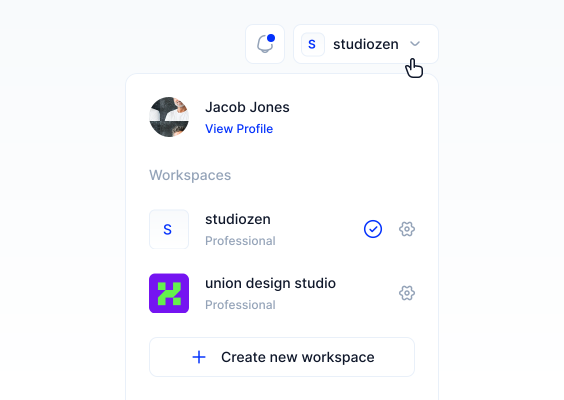
Navigating between your projects within Contentrain workspaces is straightforward. To switch between projects, click on the project name dropdown at the top of the left-hand sidebar. From the dropdown menu that appears, select the project you wish to access.
Project Settings
The project settings in Contentrain is where you can configure various settings for all the projects you have created.
1- Overview
Begin your project customization by adding a distinctive logo and updating essential details to reflect the project's identity. Here you can also delete your project when necessary.
Project Logo:
If you added a logo while creating your project, you can change it here. If you didn't add a logo during the initial process, you can upload one for your project here. (JPEG, PNG, GIF, BMP, TIFF, SVG, WebP, HEIF formats; maximum size 5 MB)
Project Name:
You can change the name you assigned to your project during the initial process. (Adhere to a 1-30 character limit, avoiding special characters except for "-" and "_".)
Project Deletion:
To delete a project, click the "I understand, delete this project." button, enter your project name in the modal that appears, and click the "I understand, delete this project." button again.
2- Localization
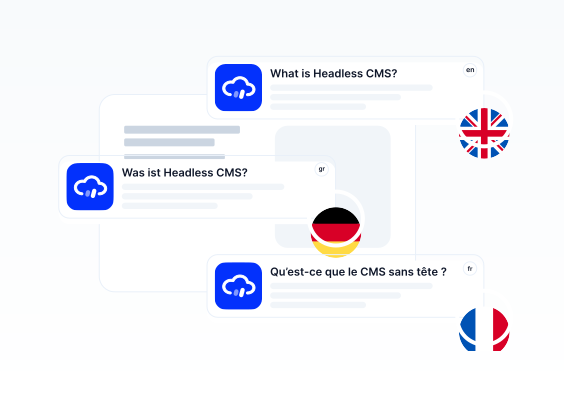
To use the localization option, add the necessary languages to your project during the initial setup. See Creating a Project for details on how to add languages during project setup.
Adding Locales
If you do not activate localization at the beginning of the project, you cannot add a new language from your project settings. If you did not add a language at the start, the Project Settings Localization tab will appear as below.
To add a new language to your project, click on the dropdown that says Select a new language, choose the language you want to add from the menu that appears, and then click the “Add new language” button on the right of the dropdown. After completing this step, the selected language will be added as a card below.
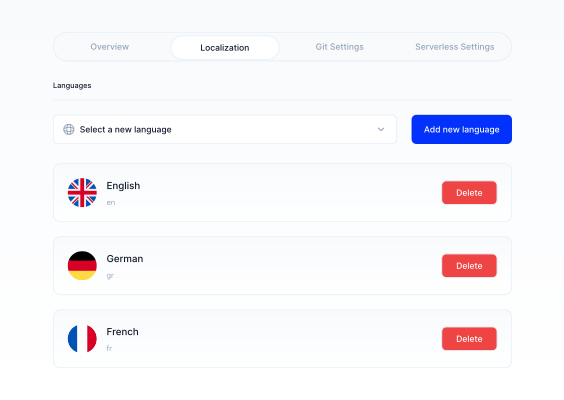
If you need to remove any language you added from your project, simply click the “Delete” button on the language cards. This will remove the language from your project.
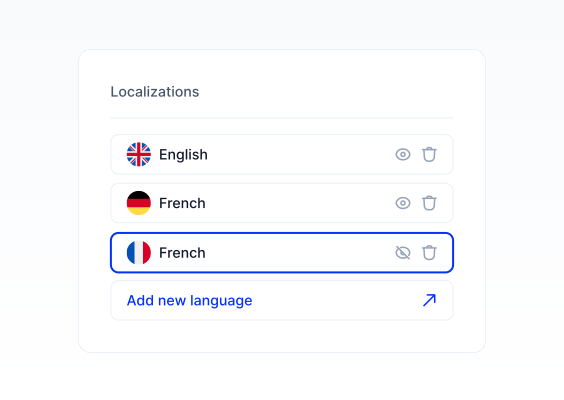
WARNING
The number of languages you can add to your projects varies according to your plan’s allowance. You can check the plan details here.
3- Git Settings:
You can change the branch management options under the Git Settings tab. To switch options, select one of the cards below and complete the process.
Branch Management:
All pull and merge requests are managed by the user without any action on behalf of the user. FREE (Default)
Continues to work on the Contentrain branch but automates the PR(Pull Request) opening process to avoid hassle. However, there is no merge option; the user needs to merge themselves. It automatically integrates with deployment platforms and generates preview links. (Paid Feature)
In-app merge management in Contentrain: We automatically open the PR and allow Git merging from Contentrain without leaving, enabling the project to go live. (Paid Feature)
Branch Management Options
You can change your project's Branch Management settings within the limits of your plan. You can check the plan details here
Static Path:
You can change the Static Paths you selected during the setup of your project by the dropdown here. Just click on the dropdown, make your selection on where you want your media to be stored, and press the "Save changes" button below the dropdown.
4- Serverless Settings:
You are not limited to store your content in Git repositories. You can store your dynamic content on Serverless platforms.
To add a new Serverless Resource, click the “Add new Serverless Resource” button. Then, from the modal that opens, select the Serverless platform you want (currently only Firebase Firestore service is provided, but other platforms will be added soon) and click the "Create Resource" button to proceed.
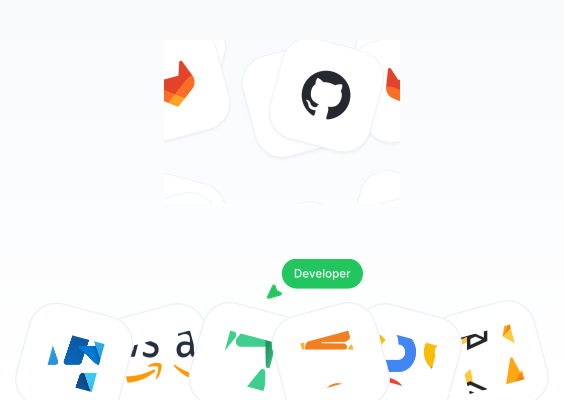
1- Resorce name:
Your model name will be written here and adhere to a 1-30 character limit, avoiding special characters except for "-" and "_".).
2- Service token:
The Service Token is a key(JSON File) that provides access to Firebase services. You need to obtain this key from here.
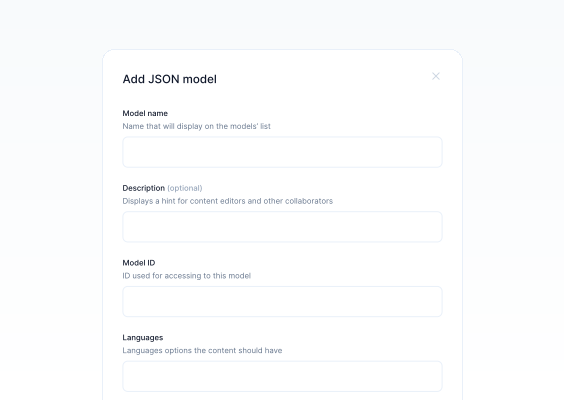
You can see the Service token here. Information on what it is and where it should be obtained will be provided.
For more information about the Google Firebase service token, please refer to the documentation here.
Log into your Firebase account, go to project settings, click on the Service Accounts tab, and then click the ”Generate new private key” button.
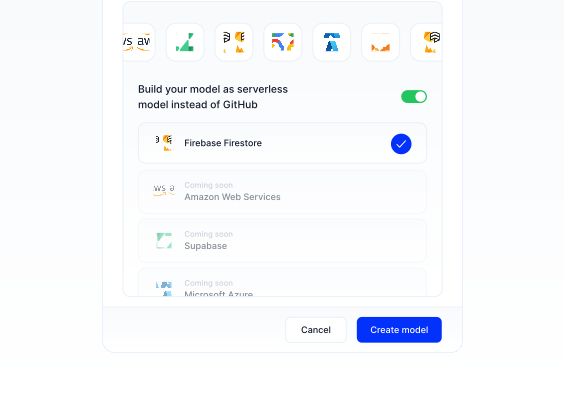
After clicking ”Generate key” in the modal that opens, you will download a JSON file that you need to upload here.
WARNING
The manual JSON copy-paste feature has been disabled by Google Firebase.
3- Upload a file:
This section requires the JSON file you downloaded in the previous step. This file is your service token, and since manual copy-pasting is not an option, you need to upload the JSON file here to activate it.
4- Database (Optional):
This is a feature that can be used for Firebase's paid users. It's the name of the database to be used in Firestore. Since free users are in the default database, this part is optional.
Project Overview
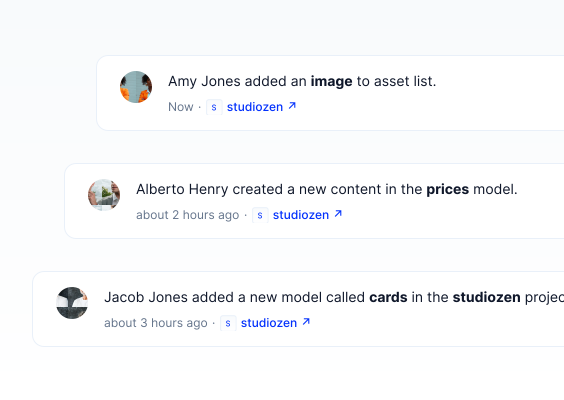
Your project overview screen consists of two tabs: Activities and Releases.
Activities:
This section chronologically lists all details of actions related to the project.
Releases:
Currently under development, this section will provide comprehensive details related to the project's Git repository once it's completed and made available to users.
Working with Content
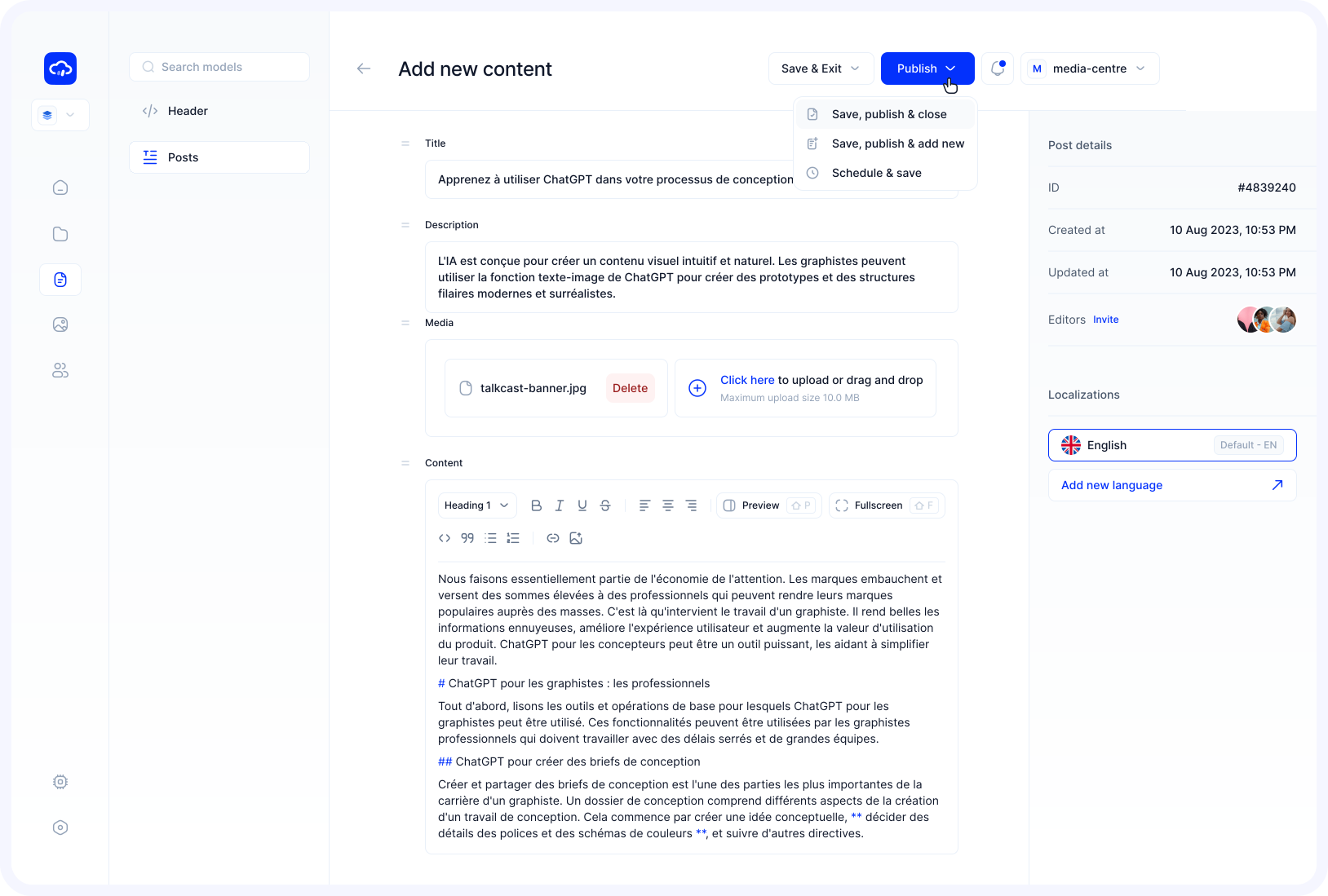
In this tab, all contents of the project are listed in Content Table. Content creators can create new materials and they have the ability to edit or delete previously created content.
For more information regarding the content section, please proceed to here.
Working with Models
Under the Models tab, all content models created for the project can be viewed. Project managers and Collaborators can add new content models to the project and edit or delete existing ones.
For more detailed information about models, please proceed to the Content Models section in the documentation.
Working with Assets
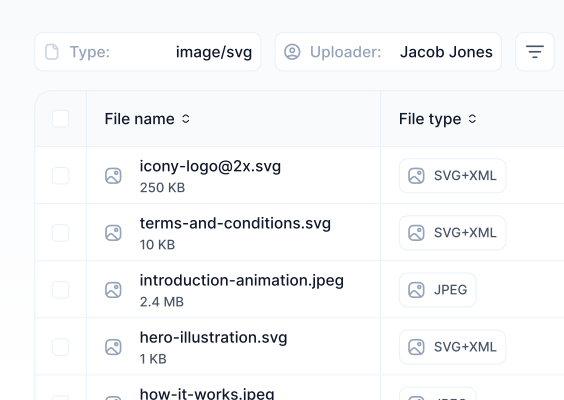
The Assets tab serves as a place for all media assets used in the project. Users, depending on their permissions, can upload new media assets or delete existing ones.
For additional information on managing assets, please see the Assets Manager section in the documentation.
Working with Users
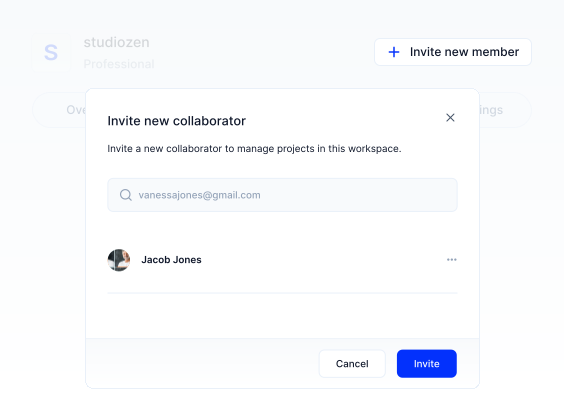
The Users tab displays users who have joined the project via invitation and who can contribute only to content management.
Project managers and Collaborators can invite new users, modify user permissions, or remove users through this tab.
If your Contentrain account have a Professional plan or higher, you can create custom roles and permissions.
For more details on user management, see the Users section in the documentation.
Working with Webhooks
Webhooks are a way for applications to communicate with each other automatically. When something happens in one application, a webhook can send a real-time notification to another application, allowing them to work together smoothly.
For example, if you receive a new message in an app, a webhook can alert another app to take action, like sending you a notification.
For more detailed information on how webhooks work and how to set them up, proceed to the Webhooks section in the documentation.