
Introduction
The Content Table in Contentrain provides all the necessary functions to efficiently view and manage your content.
You can perform delete operations on your listed content in the Content Table, publish and unpublish content, sort content, display content according to its status, change the table items display, search for specific content and much more.
You can also change the status of multiple pieces of content in bulk. For example, you can unpublish published content as draft, or vice versa.
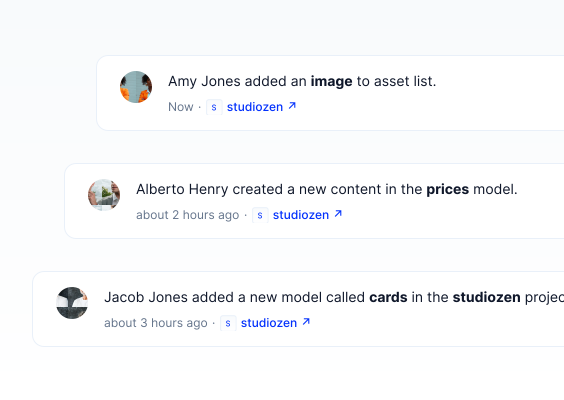
The Content Table includes important information for both content creators and developers, such as created at, updated at, and status. You can customize your table by hiding or displaying these fields according to your preferences.
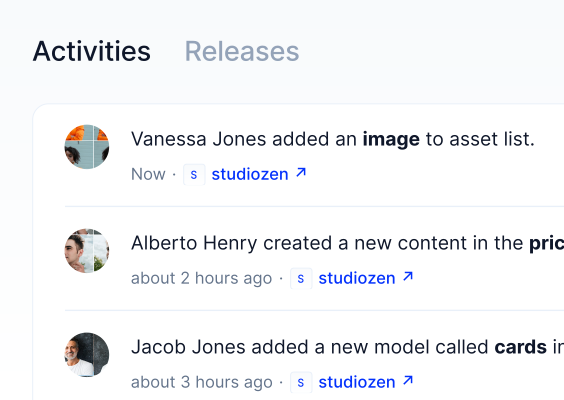
Content Table Fields
| Section | Description |
|---|---|
| Checkbox | Select multiple items for bulk or individual actions. |
| Slug | Unique identifier for each content item, used in URLs. |
| Content | Quick preview of the main content body without entering it. |
| Description | Brief overview of the content item. |
| Title | Title of the content item. |
| Order | Position of the content item in the sequence. |
| Created at | Date and time when the content was created. |
| Updated at | Date and time when the content was last updated. |
| Status | Current publication status (e.g., publish, draft). |
| Actions | Options to edit, delete, or change the status of content. |
Content Statuses
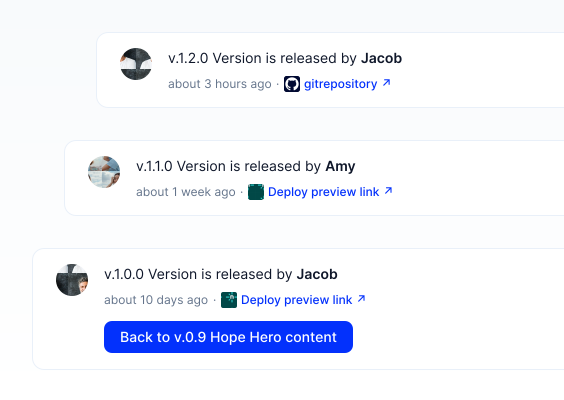
Content creators can instantly publish their content or schedule it for a future date. They can also unpublish published content as draft, either temporarily or permanently, to remove it from publication.
Content statuses are easily visible in the table, allowing you to quickly change the status of any content.
For detailed information on content statuses, visit the Content Status section.
| Status | Description |
|---|---|
| Changed | Content that has been edited after its initial publication but saved without being republished. |
| Scheduled | Content set to be automatically published at a specified future date and time. |
| Draft | Content that is incomplete or not ready for publication, saved for further editing. |
| Published | Content that has been made live and is currently accessible to the public. |
Search Content
Use the Search input to easily find your content listed in the tables within your model.
Click on the Search input and type the keyword you want to search for within the Content Table.
Filter & Sort Content
You can filter or sort the content listed in the Content Table based on specific parameters.
One way to filter content is by status. Select the desired status from the status dropdown above the table to view content based on that status.
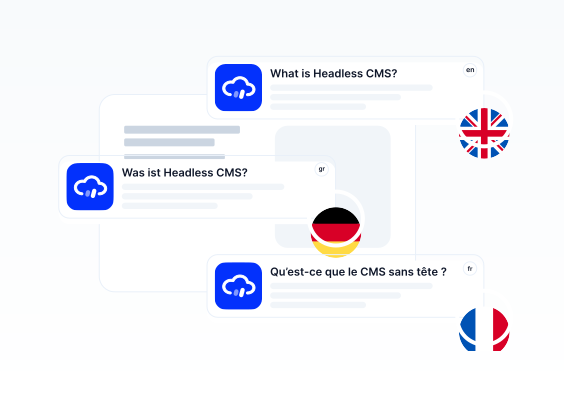
If your content includes localization and you have created content in different languages, use the language dropdown above the table to view content in the selected language.
To customize the visible columns in the table, click the menu icon on the far right and check or uncheck the boxes next to the fields you want to display or hide.
You can sort content within the table by name, date, or other parameters by clicking the small arrow icons next to the relevant column headers.