Overview
This guide provides detailed steps for quickly setting up a project with Contentrain.
Contentrain offers three methods for project setup: Manual Installation, Starter Project, and Template from the marketplace, each offering a different workflow to suit your project needs.
Template Marketplace
Project setup via Template Marketplace is currently under development and will be accessible soon, offering a range of free and paid templates.
For existing Frontend projects where you wish to integrate Contentrain Manual Installation will be the right choice for you.
If you have not set up a project in Contentrain before, starting with Starter Kits could be the right option. With Starters, you can set up a project and experience how changes in Contentrain instantly reflect on your project when published on platforms like Netlify or Vercel. For now, Starter Kits consist of Nuxt.js and Next.js Frameworks; other starter kits will be available soon.
Forking Projects
In addition to the three project creation methods previously described, there's another method involved forking the open source repo called Forking project. For more information on this, you can proceed here.
Primary Workspace Git Integration
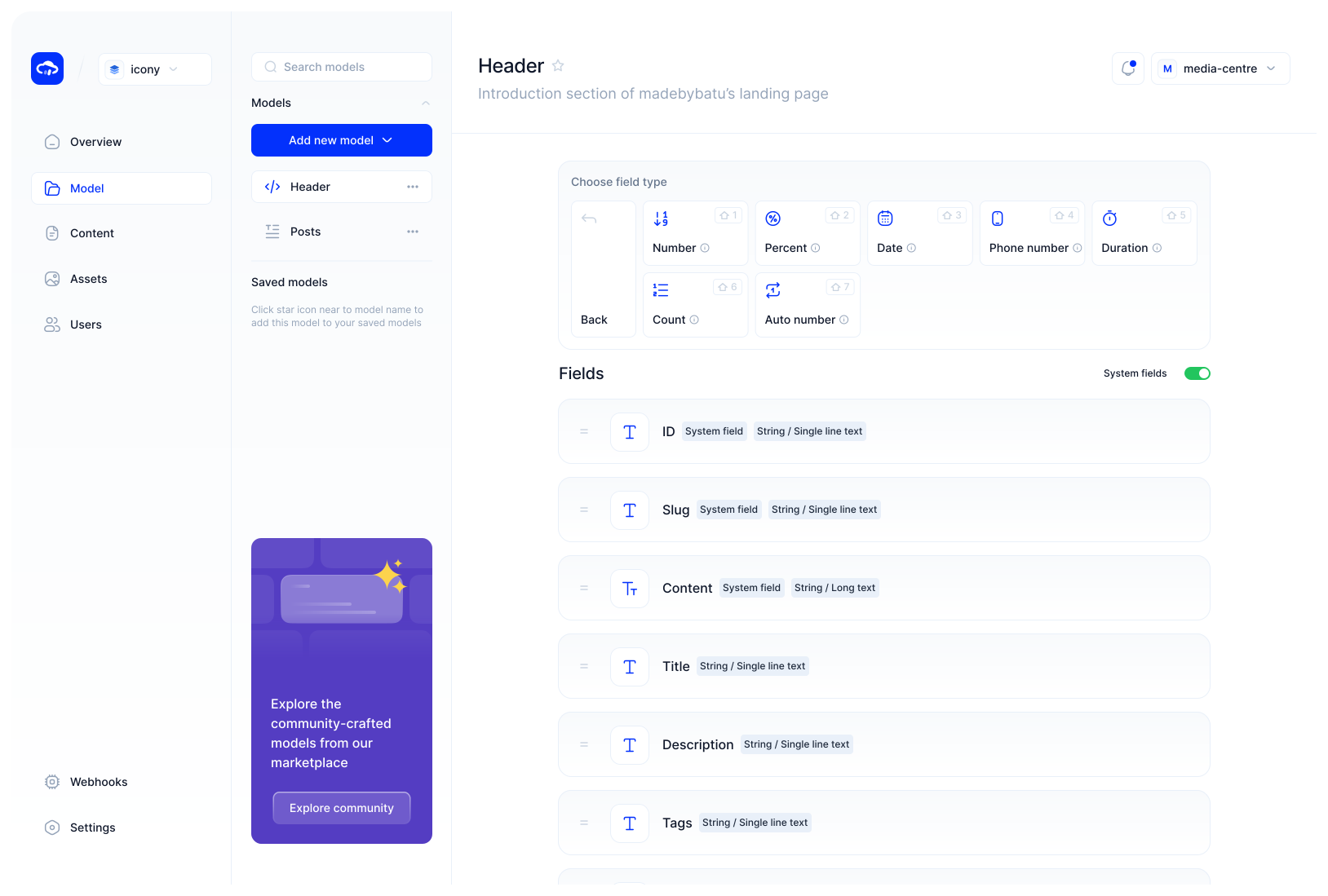
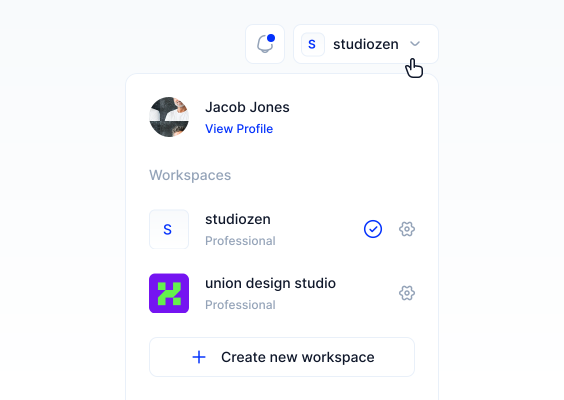
Upon your first login to Contentrain, after signing up, you will land on the Overview screen, where your Primary Workspace is automatically created.
DANGER
To continue working with Contentrain, you must connect a Git account to your Primary Workspace.
Here’s How to connect a Git account to your primary workspace step by step:
To connect a Git provider to your primary workspace, you can click the "Connect Git provider" button.
Step 1: Select Provider
Select the Git provider where you need to set up the project at this step.
Gitlab
Gitlab Integration is under development for now you can only work with Github.
Step 2: Select Account
In this step, after granting the necessary app permissions via the GitHub modal and installing to your Contentrain account, you can complete the process by selecting which account to proceed with from the menu and clicking the "Next" button.
Once your Git account is connected to your Primary Workspace, you’ll be automatically redirected to the Contentrain Overview screen.
Primary Workspace Git Integration
If you need additional guidance on setup instructions, visit the Git Providers section in our documentation.
Manual Project Installation
In the Workspace Overview, navigate to the "Start your First Project with" section, you can begin your project setup by clicking on the "Start a project" button on the Manual Installation card.
Step 1: Select Provider
Your Git provider is set during the initial Workspace setup, and this applies to all your projects within the same workspace.
Step 2: Select Account
Projects will be installed on the Git account that you choose during the Workspace setup. To use a different Git account, update it in the Workspace settings.
For more detailed info, see Git settings section in the documentation.
Step 3: Select Repository
Available repositories within your Git account are displayed. Choose the appropriate one for your project and click "Next" to continue.
Attention
Before setting up a Contentrain project in a repository, ensure that there's no existing Contentrain installation within it. For instructions on how to remove an existing Contentrain project, see our Git Providers.
Step 4: Project Basics
Determine your project's name, add languages for localization, static path for media, manage merge requests, finalizing with the "Next" button.
Project Name
Adhere to a 1-30 character limit, avoiding special characters except for "-" and "_".
Languages
Adding languages is based on your Plan's allowance, with details accessible in Pricing.
Static Path
Choose the Github Repository path for your project's media assets.
Manage Merge Requests
Contentrain operates on a dedicated branch. Controlling the content's merge to the Main branch allows separated management from the codebase.
All pull and merge requests are managed by the user without any action on behalf of the user FREE (Default)
Contentrain continues to work on the Contentrain branch but automates the PR opening process to avoid hassle. (Paid Feature)
Automatically open the PR and allow Git merging without leaving Contentrain, enabling the project to go live. (Paid Feature)
Deployment Tip
Regarding 2nd and 3rd merge options, the pull request(PR) in Contentrain creates a preview link when a change is made. Those two merge options simplify the integration process with deployment platforms like Netlify and Vercel.
After setting up, your project will be ready in a few seconds, and you will be redirected to the project overview screen. From here, you can view details about your project's content, model, assets, and users.
Manual Project Installation
If you need additional guidance on installation, proceed to the Working with projects section for comprehensive steps.
More details
- Content Model Creation: Create content models for your project, access the Content Models section.
- Content Editing: Create or edit content for your project, visit the details of Content Editing here.
- Media Assets Management: Add media assets to your project and manage them by learning more through the Assets Manager here.
- Custom Roles & Permissions: Invite different users and assign custom roles and permissions by using the Custom Roles & Permissions feature.
- Webhooks: Integrate webhooks to communicate with third-party marketing tools by accessing the Webhooks feature.
- Project Settings: Change and manage various settings of your project by visiting the Project Settings area.
- Project Basics: For general management and project oversight, go to the Project Basics area.
Starter Kit
If you're new to Contentrain and want to learn how to build models, beginning with a Starter Project is a good choice.
Set up a project with frameworks like Nuxt.js and Next.js to discover Contentrain in action.
Starter Kits
Starter kits for frameworks such as Astro, Docusaurus, Svelte, Hugo, 11ty, and Jekyll are currently in development. Soon, you will be able to access these starter kits on Contentrain.
To begin, in your Workspace Overview, under "Start your First Project with" click "Start a project" on the Starter Project card to initiate setup.
Step 1: Select Provider
Your Git provider is set during the initial Workspace setup, and this applies to all your projects within the same workspace.
Step 2: Select Account
Projects will be installed on the Git account that you define during the Workspace setup. To use a different Git account, update it in the Workspace settings.
For more detailed info, see Git settings section in the documentation.
Step 3: Select Framework
You can proceed by selecting the Framework you want to continue and click the "Next" button.
Step 4: Project Basics
Determine your project's name, add languages for localization, static path for media, repository visibility, merge options and finalizing it with the "Next" button.
Project Name
Adhere to a 1-30 character limit, avoiding special characters except for "-" and "_".
Languages
Adding languages is based on your Plan's allowance, with details accessible in Pricing.
Static Path
Choose the Git Repository path for your project's media.
Repository Visibility
Determine whether your project will be displayed as Private or Public.
Visibility Options
To host your project in a private repository, you must have a Paid plan. You can review plan details here.
Manage Merge Requests
Contentrain operates on a dedicated branch. Controlling the content's merge to the Main branch allows separated management from the codebase.
All pull and merge requests are managed by the user without any action on behalf of the user FREE (Default)
Contentrain continues to work on the Contentrain branch but automates the PR opening process to avoid hassle. (Paid Feature)
Automatically open the PR and allow Git merging without leaving Contentrain, enabling the project to go live. (Paid Feature)
Deployment Tip
Regarding 2nd and 3rd merge options, the pull request(PR) in Contentrain creates a preview link when a change is made. Those two merge options simplify the integration process with deployment platforms like Netlify and Vercel.
After setting up, your project will be ready in a few seconds, and you will be redirected to the project overview screen. From here, you can view details about your project's content, model, assets, and users.
Starter Kits
For further details, explore the Starters section for more options and detailed usage instructions.
More details
- Content Model Creation: Create content models for your project, access the Content Models section.
- Content Editing: Create or edit content for your project, visit the details of Content Editing here.
- Media Assets Management: Add media assets to your project and manage them by learning more through the Assets Manager here.
- Custom Roles & Permissions: Invite different users and assign custom roles and permissions by using the Custom Roles & Permissions feature.
- Webhooks: Integrate webhooks to communicate with third-party marketing tools by accessing the Webhooks feature.
- Project Settings: Change and manage various settings of your project by visiting the Project Settings area.
- Project Basics: For general management and project oversight, go to the Project Basics area.
Template from marketplace
Another way to start a project and bring your content to the online world with Contentrain is through projects created with templates.
Template Marketplace
Project setup via Template Marketplace is currently under development and will be accessible soon, offering a range of free and paid templates.
Template market will include paid or free Landing Pages, Document-driven web projects and much more:
Internal or external API Documentation
API references
Product overviews
Engaging marketing campaign websites
Modern startup landing pages
Jamstack websites
Multi language websites
RFP portals & Knowledge bases
PWA's
E-commerce websites
Blogs & Publishing platforms
Mobile application contents
By choosing a template when starting a project, you can quickly set up your project and begin creating content.
You can customize and extend the templates you purchase at any time, adding pages and scale it easily.
Creating a JSON Content Model
Creating a content model in Contentrain can be done in a very easy and developer-friendly way. You can create your Content Models in either JSON or Markdown formats.
Let's see how to create a JSON Content Model quickly:
1- Open the project you have created and click on the "Model" tab on the left side.
2- If you are creating a project from scratch, click the “Add new model” button in the middle of the screen and pick a Content Model option according to the type of model you want to create.
3- To create a JSON Content model, choose JSON model from the dropdown that opens.
4- Enter the name and description of your Content Model.
5- The Model ID will automatically be generated based on the Content Model name you enter.
6- To add localization to your Content Model, you can activate the switch in the localization section.
Adding new languages
To add languages to your Content Models, you must activate localization and make language selections during the project setup. Otherwise, you cannot add different languages to your models. See more details, Localization.
7- If you need to manage your Content Model through a serverless platform, you should open the switch at the bottom of the Modal which’s “Build your model as serverless model instead of GitHub” and enter the tokens you have previously created.
For more detailed info, see Serverless Settings in the documentation.
Serverless Collections
Serverless Collections are available exclusively to paid plan users. You can review the pricing details here.
8- Once you have completed all the necessary steps, click the ”Create a model” button to create your model.
JSON Content Models
For further details on how to create a JSON content model, you can proceed to the Content Models section.
Creating a Markdown Content Model
Markdown is a lightweight markup language designed for formatting text with ease using a plain-text editor. It's built for simplicity and readability, allowing users to create well-structured documents without complex HTML knowledge.
In Contentrain, you can also create your content models in Markdown format.
Let's take a look at how to create a Markdown Content Model:
1- Open the project you have created and click on the "Model" tab on the left side.
2- If you are creating a project from scratch, click the “Add new model” button in the middle of the screen and pick a Content Model option according to the type of model you want to create.
3- To create a Markdown Content Model, choose Markdown model from the dropdown that opens.
4- Enter the name and description of your Content Model.
5- The Model ID will automatically be generated based on the Content Model name you enter.
6- For the Content Model you create in the Markdown format, you can select or create a new path where media files should be located in your Git repo.
7- To add localization to your Content Model, you can activate the switch in the localization section.
Adding new languages
To add languages to your Content Models, you must activate localization and make language selections during the project setup. Otherwise, you cannot add different languages to your models. See more details, Localization.
8- To use the Markdown in the MDX format, you can activate the MDX switch at the bottom of the Modal. For more information about the MDX format, you can go here.
9- Once you have completed all the necessary steps, click the “Create a model” button to create your model.
Markdown Content Models
For further details on how to create a Markdown content model, you can proceed to the Content Models section.
Creating the first Field on your Content Model
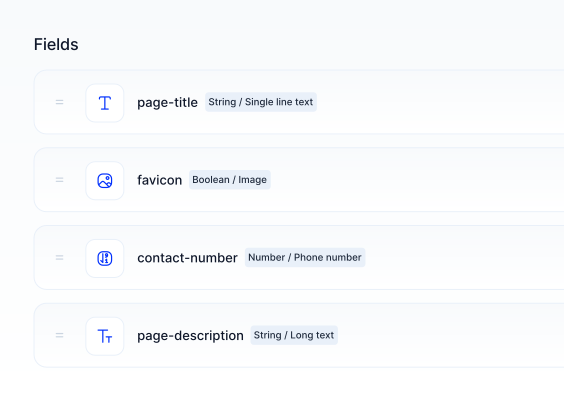
Creating fields for your Content Model can be done very quickly and in a developer-friendly way. First, select a data type, and then choose the relevant fields.
Let's create an example Content Schema named Hero model and add fields to it:
1- Select String on the data types in the Schema Builder.
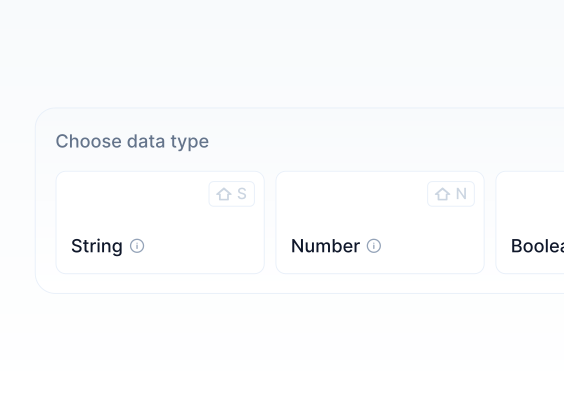
2- From the fields into the String data types, select the Single line text field.
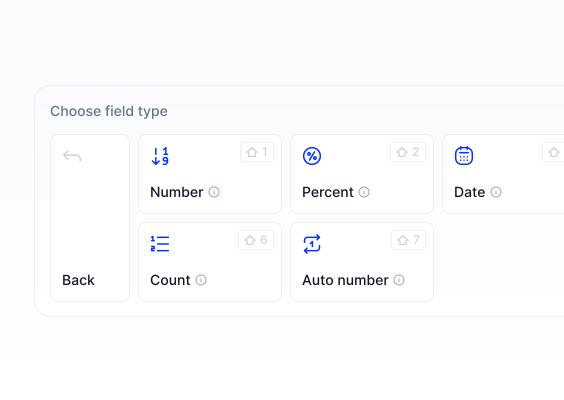
3- In the modal that opens, enter the name of the field (HeroTitle) and description (Optional). The Field ID will automatically be generated.
4- From the Options tab below, you can make detailed settings related to this field.
5- From the Validations tab, you can choose whether this field is required or unique.
6- Click the "Create Field” button to create this field.
7- Select String on the data types in the Schema Builder again.
8- From the fields corresponding to the String data type, select the Multi-line text field.
9- In the modal that opens, enter the name of the field (HeroDescription) and description (Optional). The Field ID will automatically be generated.
10- On the Options tab below, you can make detailed settings related to this field.
11- From the Validations tab, you can also choose whether this field is required or unique.
12- Click the "Create Field” button to create this field.
13- Select Media on the data types in the Schema Builder.
14- From the field corresponding to the Media data type, select the Media field.
15- In the modal that opens, enter the name of the field (HeroImage) and description (Optional). The Field ID will automatically be generated.
16- From the Validations tab below, you can also choose whether this field is required.
17- Click the "Create Field” button to create this field.
18- To see the system fields that are automatically created in the model besides the fields you created, you can turn on the ”System Fields” switch.
Content Model Fields
If you require additional information on Content Model Fields, you can proceed to the Content Model Fields section.
Creating the first Content
For the Content Models you've created, you can enter the content you need through our smooth content editing screens.
Let's quickly create content for the Hero Model we made in the previous step:
1- Click on the Content tab from the left menu to reach the screen where contents are listed.
2- As we haven't created any content yet, a blank screen will greet us. To create our first content, we click on the "Add first content" button.
3- After clicking the button, we arrive at the first screen where we can add all the contents for the content model we created.
4- In the HeroTitle field, we write a title of our choice: “Contentrain is the best git-based Headless CMS.”
5- In the HeroDescription field, we write a description: “A Headless CMS that combines Git and Serverless Platforms to optimize content management on digital products for developers and content creators.”
6- For the HeroImage field, we select a PNG, JPEG, or SVG previously added to the Assets to complete the content entry.
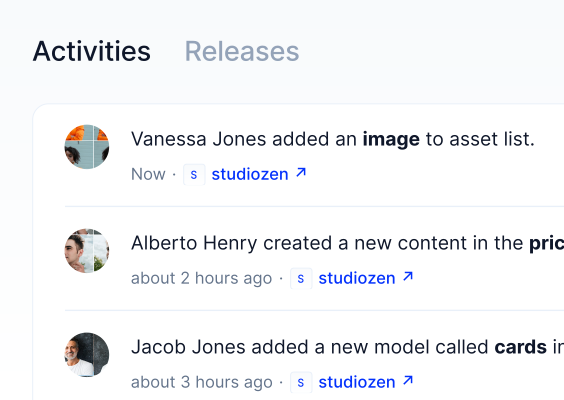
Content Creation
If you need additional guidance on how to create a content, you can proceed to the Creating Content section.
Publishing your first Content
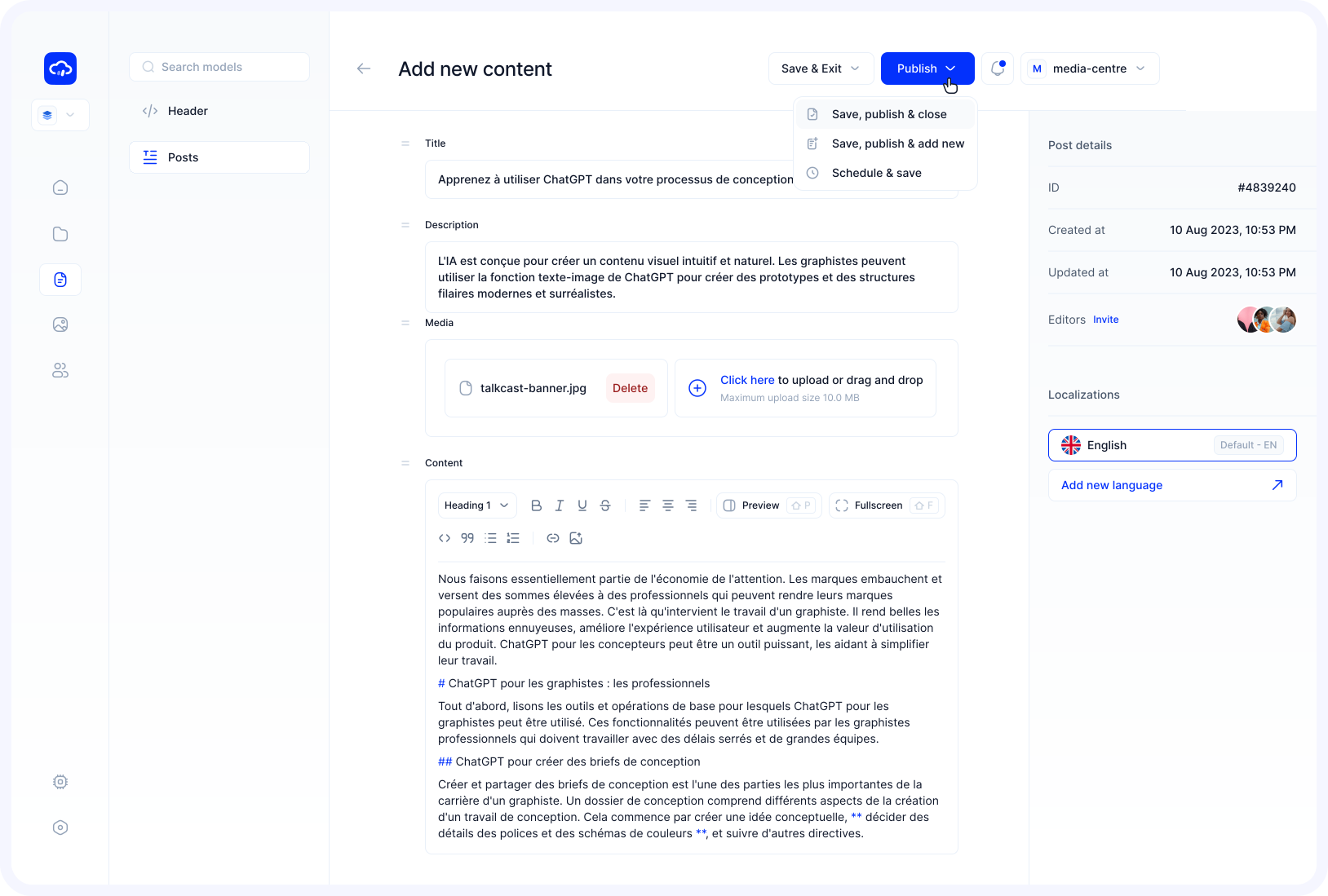
Once you've entered your content, Contentrain allows you to immediately publish it, save it as a draft for later editing or sharing, or schedule it for a future date using the Content Schedule feature.
1- To send the content you've entered to your live website, click on the “Save, Publish and Close” option in the "Publish" dropdown menu at the top, which sends the content to your website.
2- If you need to save the entered content for further edits, press the "Save & Exit" button to save it with "Draft Status."
3- To schedule your content for a future date, click on the ”Save & Schedule” under the Publish dropdown menu button, allowing you to automate the publishing at your chosen date.
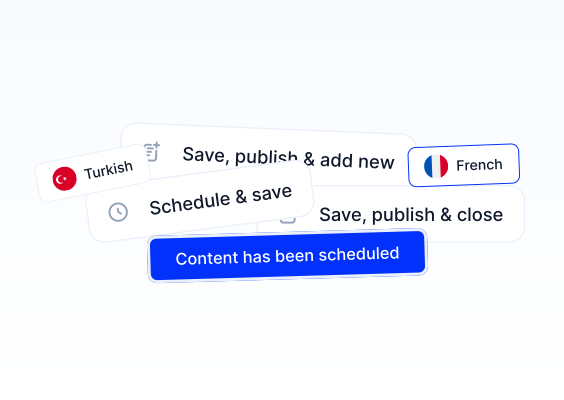
4- If you prefer to save this content as a draft to publish or edit later, simply click on the “Save & Close” under the “Save & Exit” dropdown menu button.
5- The content you create will be listed in the Content Table.
Content Publishing
If you require additional information on publishing, you can proceed to the Publishing Content section.
List of Content Statuses
| Status | Description |
|---|---|
| Changed | Content that has been edited after its initial publication but saved without being republished. |
| Scheduled | Content set to be automatically published at a specified future date and time. |
| Draft | Content that is incomplete or not ready for publication, saved for further editing. |
| Published | Content that has been made live and is currently accessible to the public. |