
Introduction to Content Models in Contentrain
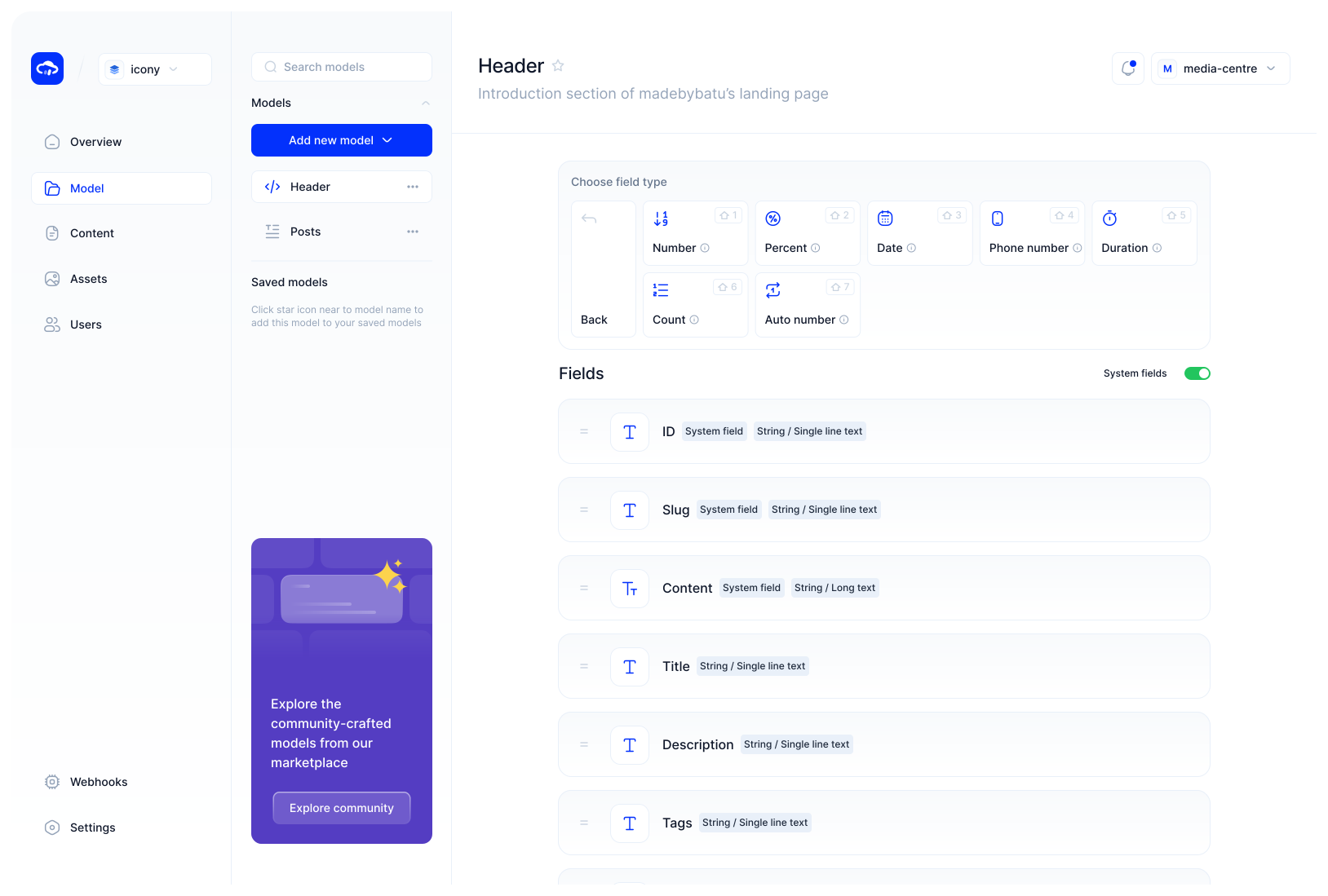
Content models are essential in any Headless Content Management System (Headless CMS). They dictate the rules for how data is to be structured and collected from users by defining the fields of content.
Each data model comes with its own unique set of characteristics. For instance, consider a 'Products' model created for an e-commerce website, where numerous products will be added. The model will need fields such as price, description, and image.
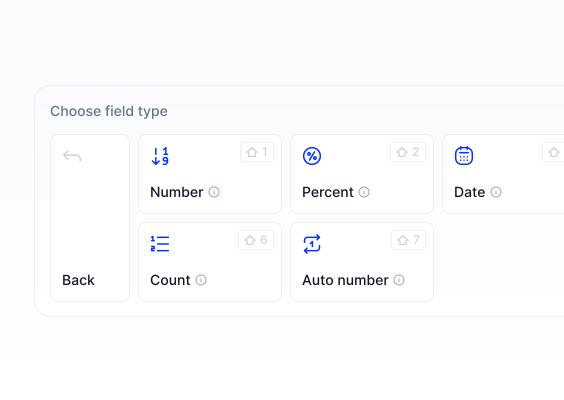
When creating the fields for a model, we've employed a structure which’s familiar to developers within the JavaScript ecosystem, differing from other Headless CMSs. Typically, in a Headless CMS, you create a model and add fields by selecting components. For example, when adding a price field, you would select a number input component because you know it carries a number, but we recognized this could sometimes be confusing.
In the developer ecosystem, even though some data types serve the same purpose, they can be different. For example, a product's publish date, release date, or expiration date—all require a field capable of carrying date data. The critical aspect here is that the date information can be a string or a date type in JavaScript.
You can store a product's price as either a string or a number in a field. Proceeding directly with component selection can lead to confusion for the developer, such as expecting a number but receiving a string. To prevent this, we've crafted a Schema Toolbox in Contentrain with shortcuts for ease.
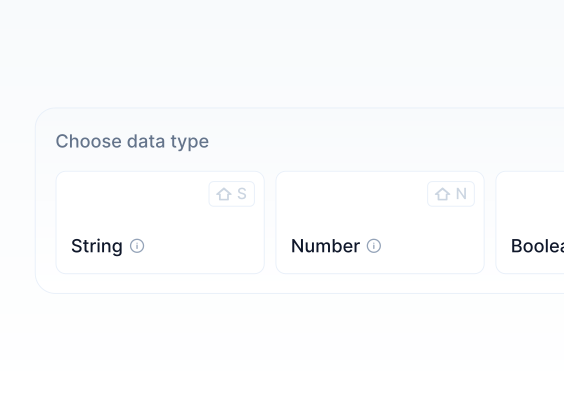
Contentrain offers two types of models: JSON and Markdown.
JSON(Javascript Object Notation) models are perfect for structuring and storing data in a format that's easy to create, read, and update.
Markdown models, operate on a file-based system, where the 'slug' is essentially the file name of the Markdown file. This is ideal for handling and managing text content efficiently, as it allows for easy formatting and integration with other systems.
Creating JSON Model
To create a JSON model in Contentrain, you can easily start the process using the user-friendly interface:
Steps for Creating a JSON Model:
a- Access the Model Creation Interface:
- From the sidebar, locate the model dropdown menu and select '"Add new model" to start creating a new JSON model.
b- Fill in the Details:
Model Name: Enter the name of your Model here, within a 1-30 character range. Please do not use special characters, with the exception of hyphens (-) and underscores (_).
Description (Optional): Though optional, this is used for metadata and assists in the display of the model in tables and array views. Fill this in to clarify the model's purpose and context.
Model ID: This is automatically generated from the model name and will be slugified for URL usage.
c- Localization (Optional):
- If your content will be multi-language, turn on the 'Localization' switch to activate localization features for your model. See: Localization
d- Serverless Model Capability (Optional):
- If you plan to integrate with third-party serverless services, Contentrain’s Serverless Collections feature facilitates this connection. Look for Serverless Settings to learn more.
e- Complete Your Model:
- After filling in the necessary fields, click "Create model".
f- Begin Adding Fields:
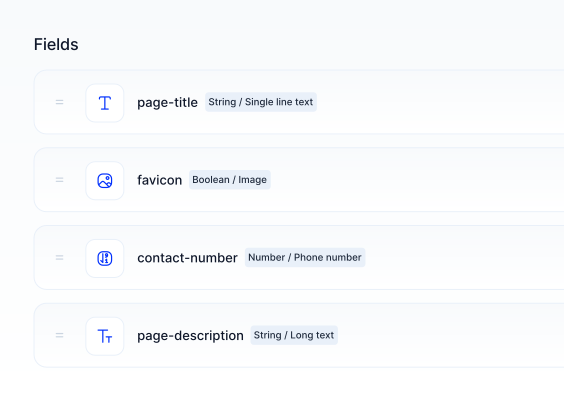
- Now, you can start adding fields to your model. Check ‘Fields’ for options to customize your content model structure further. See, Fields
Creating Markdown Model
For users who prefer working with text-based content creation, Contentrain facilitates the creation of Markdown models. Here's how you can create one:
Steps for Creating a Markdown Model:
a- Access the Model Creation Interface:
- Navigate to the model dropdown menu in the sidebar and click "Add new model" and choose Markdown model.
b- Fill in the Details:
Model Name: Enter the name of your Model here, within a 1-30 character range. Please do not use special characters, with the exception of hyphens (-) and underscores (_).
Description (Optional): Though optional, this is used for metadata and assists in the display of the model in tables and array views. Fill this in to clarify the model's purpose and context.
Model ID: This is automatically generated from the model name and will be slugified for URL usage.
c- Set the Path:
- Define a default path to help you navigate through Markdown files within Contentrain. This path can also be changed during the creation phase.
d- Localization (Optional):
- If you require multi-language support, enable the 'Localization' switch to activate localization options for the model. See, Localization
e- MDX Format (Optional):
- For an extended Markdown experience with interactive JSX components, toggle on the 'Use MDX Format on this model' option. See, MDX
f- Complete Your Model:
- After entering the necessary fields, press the "Create model" button. You've now successfully created a Markdown model.
g- Begin Adding Fields:
- Start customizing your model with fields and customize your content structure. See: Fields
Edit Model
After creating your models in Contentrain, you might need to make changes or updates. Here’s how you can edit your models:
Steps for Editing a Model:
a- Access the Model Options:
- Find the model you need to edit from the model list. Click on the interactions dropdown next to the model name.
b- Choose to Edit:
- From the dropdown, select the "Edit" option. This will open a modal window where you can make changes to your model.
c- Update the Model:
- Make the necessary changes and updates within the modal. Once you’re done, clicking "Update model" will save your changes.
Duplicate Model
Duplicating models is an efficient way to create new models based on existing ones without the need to start from scratch, saving you time and effort.
Steps for Duplicating a Model:
a- Initiate Duplication:
- In the interactions dropdown, click on "Duplicate" to create a copy of the model.
b- Automatic Name Change:
- The duplicated model will have a name derived from the original model, ensuring no confusion between them. The ID field will also be automatically changed to maintain uniqueness.
Delete Model
When a model is no longer required, here’s how you can safely remove it from your project:
Steps for Deleting a Model:
a- Locate the Model:
- Navigate to the model you need to delete and click on the interaction dropdown.
b- Initiate Deletion:
- From the dropdown options, select "Delete" to begin the deletion process.
c- Confirm Deletion:
- A confirmation box will appear to ensure you want to proceed. Confirming this action will permanently delete the model.
WARNING
Deleting Markdown model from Contentrain will not remove the content generated with these models from your GitHub repository. The contents stored in different paths remain intact and will need to be manually deleted from the repository if desired.
WARNING
Remember that deleting a JSON model will also remove all content associated with that model across all languages.
Saved & Unsave Models
Contentrain offers a feature to save models for reuse across different projects within your workspace. This’s a feature available under the Paid Plan, and the yellow star icon indicates saved models.
Here's how you can manage your models:
a- Using Saved Models
- Access the saved models from the 'Saved models' list.
- To use a saved model, navigate to the interaction dropdown next to the model you wish to use.
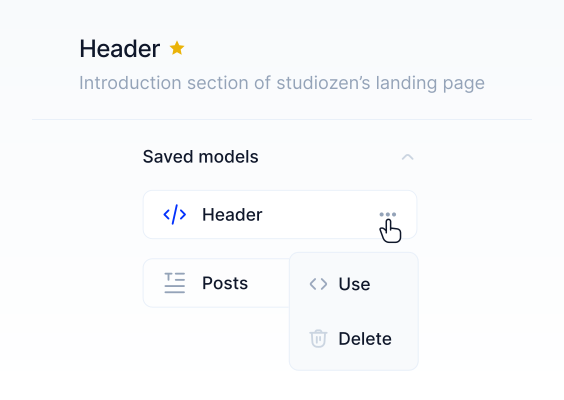
- Click on the model to utilize it in your current project.
b- Deleting or Unsaving Saved Models
- To remove a model from your saved list, you can click on the ”Delete” button in the interaction dropdown.
- Alternatively, clicking the star icon next to the model will unsave it, effectively removing it from your Saved models list.
Community Models
Introduction to Community Models: At Contentrain, we’ve established a repository on GitHub as an open-source project to share models like products, blog posts, etc., that can be reutilized across different projects within your workspace.
This allows for the usage of models crafted on Contentrain to be shared directly to this repository, and likewise, you can incorporate models shared by others into your own projects.
For direct contributions or to benefit from the models, refer to: Contentrain Community Models.
a- Share with Community
When you’re ready to share a model with the Contentrain Community, simply hit the ”Share with community” button.
This will open a modal where you can enter the model's name, description, and category to begin the sharing process. For the shared models to be incorporated into the repository,
WARNING
It's essential that the metadata (Name, Description, etc.) is adequate and the model fulfills a unique need not addressed by similar models. If not, you will be notified accordingly.
Model Categories Table, where a single model may belong to multiple categories:
| Category | Description |
|---|---|
| All | Includes every type of content model. |
| Generic | Flexible models for any type of project. |
| Business | For company and professional content. |
| Landing | For pages that introduce visitors to a product or service. |
| Ecommerce | For online stores and product listings. |
| Event | For organizing and displaying event information. |
| Informational | For educational content like guides or explanations. |
| Magazine | For articles and features in a digital magazine format. |
| Website | For creating diverse types of website pages. |
| Personal | For individual projects like blogs or personal stories. |
| Portfolio | For showcasing individual work or projects. |
| Blog | For writing and managing blog posts. |
b- Use Community Models
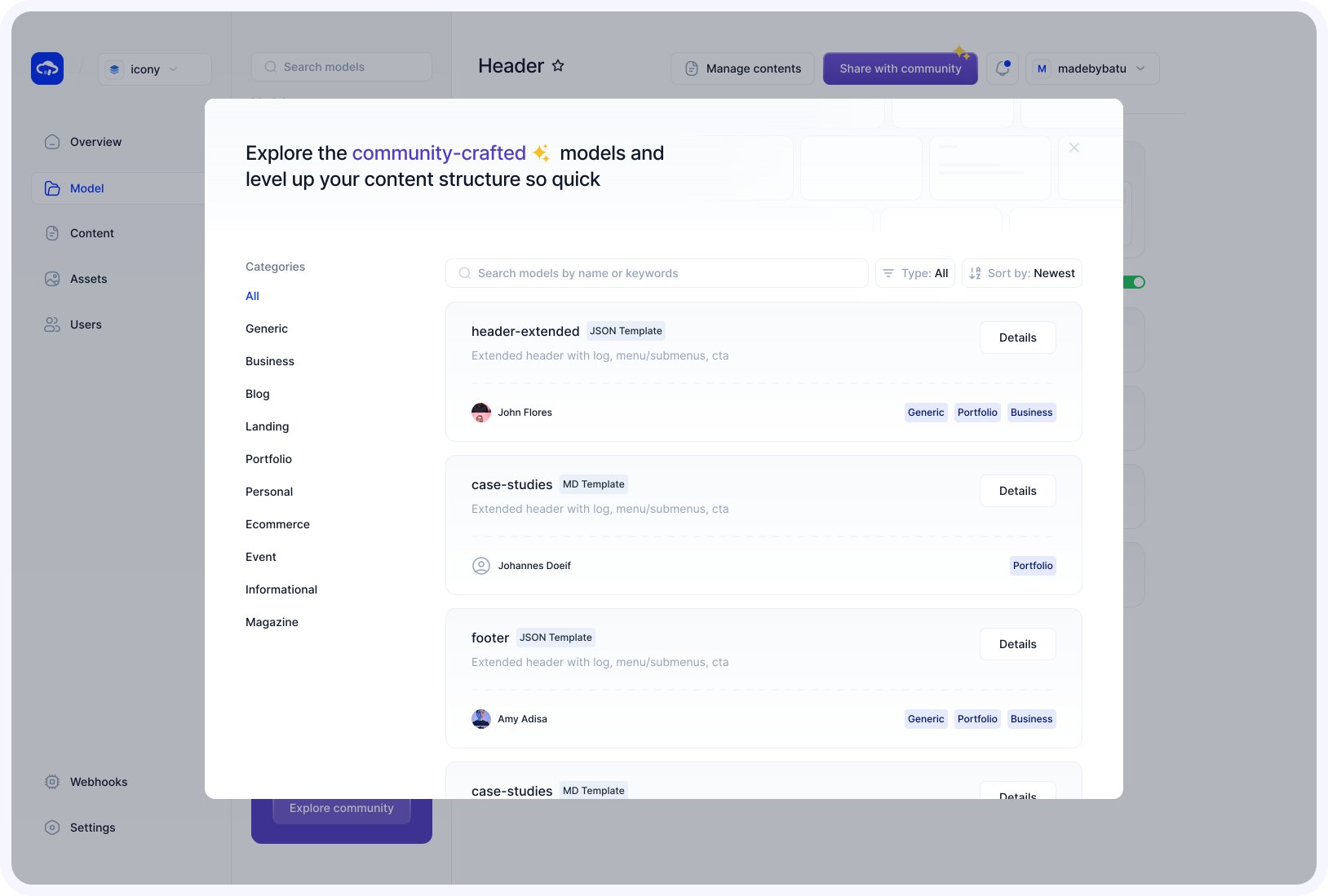
To view the models, click the ”Explore community” button indicated left side of the screen.
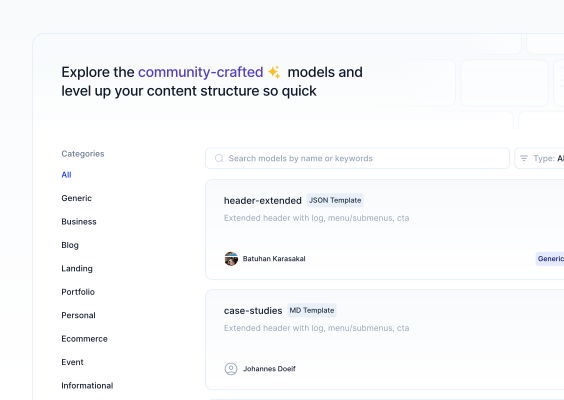
In the modal that pops up, you can filter the Community-shared Models by categories, sort them, and search within them. To access the details of a model, just press the "Details" button on the card.
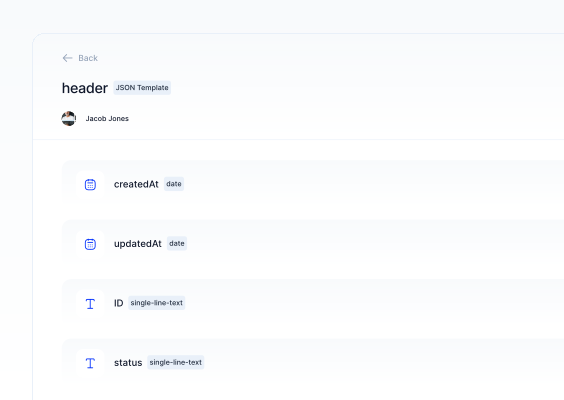
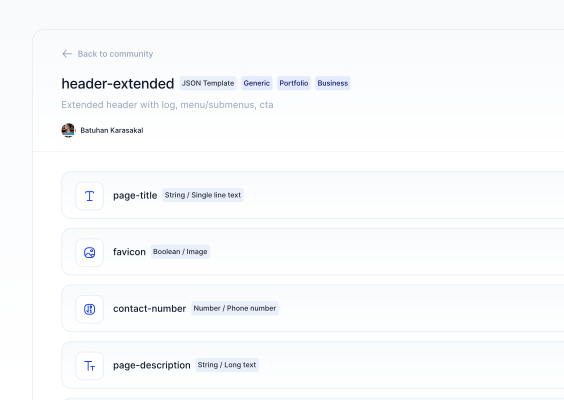
To use the models you've created, navigate to 'Saved models' from the interaction dropdown. The information popup will allow you to inspect the fields associated with the model. You can then utilize the model by clicking the "Use model" button.