
Sign-Up & Sign-In
To begin using Contentrain, you need to create an account. This process is straightforward and ensures that your workspace is personalized and secure. There’re 3 options to register: Google, Git, Manual.
Sign-Up
Signing Up with Providers
For a quicker signup process, Contentrain allows you to register using your existing accounts with third-party providers. Here's how:
- Choose a Provider: On the signup page, you'll see options to 'Continue with Github' and 'Continue with Google'. Select the provider you wish to use.
WARNING
Gitlab Integration is under development but it will be available among the Git providers.
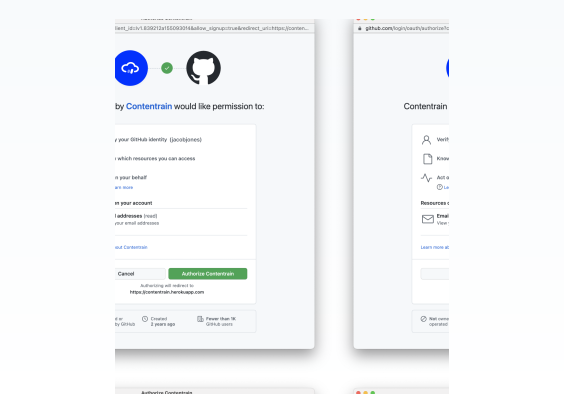
Authentication: Upon choosing a provider, a modal (pop-up window) will prompt you to log in to the selected service.
Permissions & Terms: By proceeding, you'll be requesting permission to use your provider's account information for signup and automatically agreeing to Contentrain's Terms of Service.
Completion: After successfully authenticating with the third-party provider, you will be directed to the onboarding screen to finalize your account setup within Contentrain.
Email & Password signup
Access the Signup Page:
- Navigate to the signup page by entering the correct URL or clicking on the signup link provided on Contentrain's platform.
Fill in your details:
Once the signup form is displayed, complete the fields with your information:
Name: Enter your first name.
Surname: Provide your last name.
Email: Type in your email address. It will be used for all communication and account recovery. (Must be a valid email format)
Password: Create a secure password. (8-20 characters, must include at least one digit or special character, one uppercase letter, and one lowercase letter)
Confirm Password: Re-enter your password for verification. (Must match the password)
Terms of Service:
- By signing up, you agree to Contentrain's Terms of Service. It's important to review this document, which outlines your rights and responsibilities as a user.
Complete the Signup:
- Click the "Sign Up" button after entering your details. This action will not yet complete the registration process.
Email Verification:
- For a secure account setup, you’ll need to verify your email address. Check your inbox for a verification email from Contentrain and follow the instructions provided. This step is crucial because it’s important for purchases within Contentrain and utilizing the features more efficiently. In case you forget your password, email verification is required to change your password.
Onboarding: Getting to know you
As part of working on your experience with Contentrain, we'll guide you through a brief onboarding questionnaire to better understand your needs. After completing the survey, you will be directed to the main dashboard.
Sign-In
Provider Sign-In:
For signing in with a provider such as GitHub or Google, click on the respective button displayed on this screen. The modal that appears will guide you through the login process with the selected provider.
Email and Password Sign-In:
To sign in with your email and password, you'll need to navigate to the sign-in URL. On this screen, you'll see fields for your email and password. Once you fill in these fields, you can access your account.
Forgot Password:
If you have forgotten your password, clicking the "Forgot Password" text on the Sign-in with Email screen will prompt an email to be sent to you. This email contains a link. By clicking this link, you will be directed to a page where you can create a new password and complete the process.