
Introduction:
Workspaces in Contentrain are designed for project owners to manage their projects efficiently. Each workspace can host multiple projects to address varying needs.
Workspaces are divided into personal and organizational types;
Primary Workspace: Your primary workspace must be connected to your personal Git account. Upon creating your Contentrain membership and logging in, you can link your Git account to this workspace and start working.
Git Organization Accounts
To continue working with Contentrain, you must connect a Git account to your Primary Workspace. Personal workspaces cannot be linked to Git organization accounts.
Secondary Workspace: You can link your organizational Git accounts to your secondary workspaces. They are better suited for collaborative work with teams and organizations. Invite collaborators to manage projects within these workspaces together.
Below is what a new user will see in the empty state workspace overview screen.

Workspace dashboard
| Section | Function |
|---|---|
| 1. Dashboard | This is typically the main screen or home page of your Workspace where you can see an overview of your project's status and progress. |
| 2. Profile | This section contains information about your personal account or the logged-in user's account. You can change your personal information, password, and other settings here. |
| 3. Workspaces | Here, you can create, manage, or switch between different Workspaces. Each Workspace may contain different projects, settings, and users. |
| 4. Pricing | This section provides details about the different plans and pricing options available if there are any. You can upgrade, downgrade, or change your plan here. |
| 5. FAQ | Short for Frequently Asked Questions: this section answers common questions users have about using the platform. |
| 6. Support | This is where you can reach out for help. There may be options to contact the support team, access community forums, or report issues. |
| 7. Documentation | Here, you can find detailed guides and manuals on using different platform features. Good documentation is essential for understanding how to utilize a platform fully. |
| 8. Projects | In this section, you can create, manage, and view different projects associated with your Workspace. You can also assign users to different projects, set project settings, and more. |
Primary Workspace Git Integration
Here’s How to connect a Git account to your primary workspace step by step:
To connect your Git provider to your primary workspace, you can click the "Connect Git provider" button.
Step 1: Select Provider
The first step on the screen is to select your Git provider. You can only proceed with Github for now. Click "Next" to complete the process.
WARNING
GitLab integration is currently under development; for now, you can only set up projects with GitHub.
Step 2: Select Account
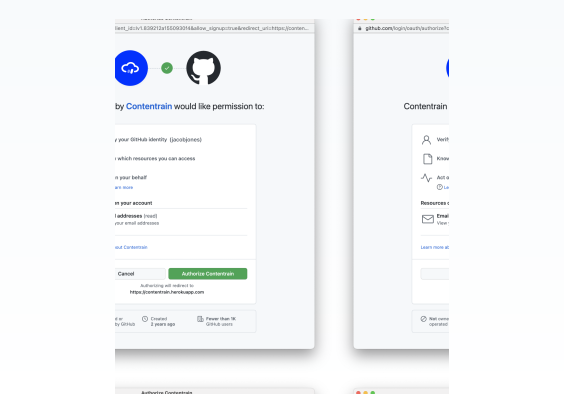
1- In this step, you’ll be directed to Github’s authorization page. By clicking on the "Authorize Contentrain" button and continuing, we obtain authorization from Github to complete the setup.
2- After authorizing Contentrain, you will be redirected back to the installation screen. Since you have not selected an account yet, you will need to click on the "Account settings" button which will lead you to the Github screen for account selection.
3- In this step, you will be redirected to the Github permissions page again. On the page that opens, you can select the account you want to install Contentrain on and continue.
4- You can proceed by giving all the permissions related to the Account you set up for Contentrain from this modal and clicking the "Install and Authorize" button.
If you choose All Repositories, you will have granted permission and installed for all repositories in your Account. If you choose only selected repository, you will have granted permission and installed only for the repository you selected.
5- You’ll be redirected back to Contentrain’s installation screen. Here, you’ll be able to view the Git Repositories to which you’ve granted permission. To continue with the Workspace installation, you can select a repository you want and click "Next" to complete the process.
After completing the necessary steps, you will be automatically redirected to your primary workspace.
If you need further guidance, please watch the walkthrough video provided below.
Creating a new Workspace (Secondary Workspace)
You can create multiple workspaces to manage various types of projects in one place. Creating workspaces in Contentrain is free.
WARNING
To integrate an organizational Git account to your workspace, you must have a paid plan. Free plan users can only integrate personal Git accounts into their workspace.
You cannot integrate a personal Git account into your Secondary Workspace . Personal accounts can only be installed into primary workspaces, as secondary workspaces can operate with organizational accounts. Only one Git account can be linked to a workspace.
To create a new workspace, click the dropdown in the top right corner of the overview menu and click on the "Create a new workspace" button to start creating your new workspace.
Step 1: Workspace Basics
Workspace Logo: You can personalize your workspace by uploading a custom logo. If you prefer, you can skip adding a logo during the initial setup and later upload your desired logo through your workspace settings. (JPEG, PNG, GIF, BMP, TIFF, SVG, WebP, HEIF formats; maximum size 5 MB)
Workspace Name: Enter the name of your Workspace here, within a 1-30 character range. Please do not use special characters, with the exception of hyphens (-) and underscores (_).
After completing the necessary steps, click the "Next" button to proceed to your workspace basics.
Step 2: Select Provider
After creating your Contentrain account, the Git provider connected to your primary workspace will be considered the default provider for your subsequent workspaces.
Git Providers
Different Git providers cannot be used within the same Contentrain account.
Step 3: Select Account
1- To choose the repository for setting up your secondary workspace, click the "Account settings" button to navigate to GitHub's account settings page.
2- On this GitHub page, you'll see your listed accounts. Select the account you wish to use for your secondary workspace to proceed.
Installation
It's not permitted to do a new Contentrain setup on Git repositories where Contentrain has been previously installed.
3- You can proceed by giving the permissions related to the account you want to set up for Contentrain from this modal and clicking the "Install & Authorize" button.
If you choose All Repositories, you will have granted permission and installed for all repositories in your Account. If you choose only selected repository, you will have granted permission and installed only for the repository you selected.
4- You’ll be redirected back to Contentrain’s installation screen. Here, you’ll be able to view the Git Repositories to which you’ve granted permission. To continue with the Workspace installation, you can select a repository you want and click "Next" to complete the process.
After completing the necessary steps, you will be automatically redirected to the overview screen of your secondary workspace.
If you need further guidance, please watch the walkthrough video provided below.
Switching Workspaces
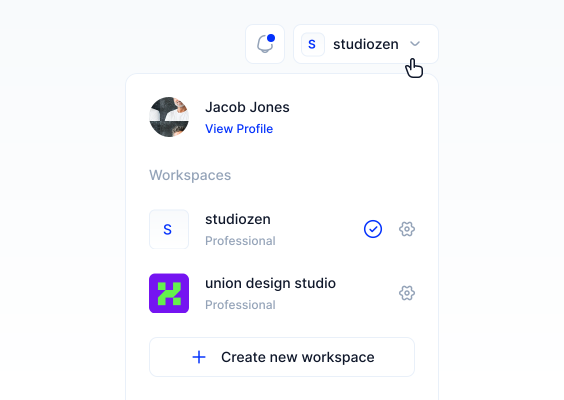
Creating workspaces in Contentrain and switching between them is straightforward. You can find all your workspaces in the dropdown at the top right corner of the overview screen.
To switch between your workspaces, simply click on the dropdown in the top right corner and select the workspace you wish to access.
The workspace you're currently in will appear selected as shown below.
In the dropdown menu, three Workspaces will be displayed. To view additional Workspaces you've created, click the "See all workspaces" button. This action will take you to a modal where all Workspaces are listed, allowing you to manage them conveniently from single place.
Workspace settings
In Contentrain, your workspaces are digital working places where you connect your Git accounts and manage different projects.
You can adjust settings related to your workspace through the workspace settings menu.
1- Overview
Begin your workspace customization by adding a distinctive logo and updating essential details to reflect the project's identity. Here you can also manage your workspace’s primary contact email and oversee deletion of additional workspaces when necessary.
a- Workspace Logo: If you added a logo while creating your workspace, you can change it here. If you didn't add a logo during the initial process, you can upload one for your workspace here. (JPEG, PNG, GIF, BMP, TIFF, SVG, WebP, HEIF formats; maximum size 5 MB)
b- Workspace Name: You can change the name you assigned to your workspace during the initial process. Stay within a 1-30 character range. Please do not use special characters, with the exception of hyphens (-) and underscores (_).
c- Registered Email: You can update the email associated with your workspace.
d- To delete a workspace, click the "I understand, delete this workspace." button, enter your workspace name in the modal that appears, and click the "I understand, delete this workspace." button again.
Deleting Workspaces
You cannot delete your primary workspace, but you can delete any secondary workspaces you've created.
2- Team
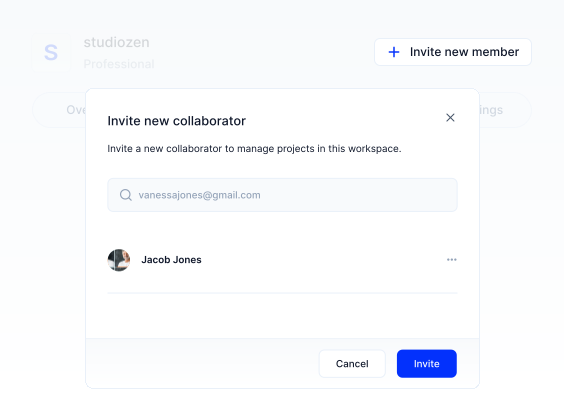
To invite a new collaborator to the Workspace, click the ”Invite new collaborator” button, enter the invitee's email in the modal, and click ”Invite” to send the invitation.
To remove a collaborator from the Workspace, click the three-dot icon next to the user card and click ”Delete”.
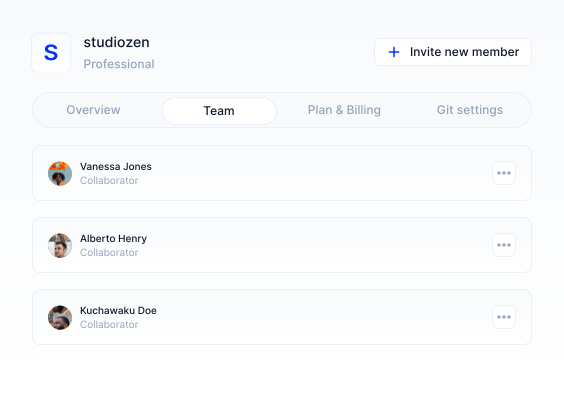
Working with Collaborators
Inviting collaborators to projects requires a professional or higher paid plan. For detailed information, please check the pricing.
3- Plan & Billing
In the Plan & Billing tab, you can view your current plan and explore other plans by clicking the “Explore plans” button.
To cancel your current plan, click the ”Cancel” button under the Plan tab and confirm the cancellation in the popup by clicking ”Yes, cancel my subscription.”
For payment details, click on “Show payment detail” to view them on your Stripe page.
To view the invoice for your payment, go to the Billing History tab and click the ”PDF” button.
4- Git settings
To manage settings and permissions for the Github Account connected to Contentrain, click “Manage permissions” to be directed to the Github settings page.
To disconnect your Github account from the current Workspace, click ”Disconnect”, then in the popup, enter the Git Account Name and confirm by clicking on ”Disconnect”.
In the Repositories tab, you'll find a list of all the repositories that you have granted permissions for your account.
DANGER
If you delete the git repository from your workspace, you won't be able to use this workspace anymore. To continue using, you must integrate it to another git repository.