
Introduction
When you create content, you can publish it immediately, save it as a draft, or schedule it for automatic publishing at a future date.
Contentrain allows you to manage your content with four statuses, enabling real-time changes across all statuses.
| Status | Description |
|---|---|
| Changed | Content that has been edited after its initial publication but saved without being republished. |
| Scheduled | Content set to be automatically published at a specified future date and time. |
| Draft | Content that is incomplete or not ready for publication, saved for further editing. |
| Published | Content that has been made live and is currently accessible to the public. |
Publishing a Content
Publishing content is an action you can complete in just a few clicks.
1- Select the content model that you need to edit or create.
2- If the selected model is empty, click “Add first content” to enter your content. Alternatively, if you are editing previously entered content, click the edit icon on the right side of the content table to access the content editing area.
3- Click the ”Publish” combo button in the upper right corner of the screen and select ”Save, publish & close” from the menu to complete the content publishing process.
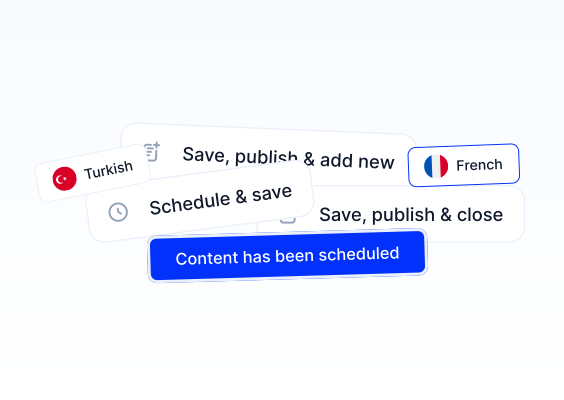
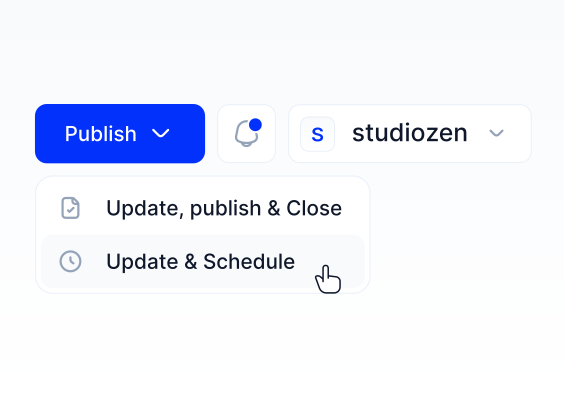
Note: If you need to republish a published content or a draft, click the “Publish” combo button in the upper right corner of the screen and select “Update, publish & close” from the menu to complete the content publishing process.
Content Save & Draft
If you do not publish the content immediately and plan to publish it later, you can save the content and set its status to draft. You can edit and publish this draft content at any time.
1- Select the content model you need to enter content for.
2- If the selected model is empty and you are creating new content, click “Add first content” to enter your content.
3- After entering your content, click the ”Publish” combo button in the upper right corner of the screen and select ”Save & close” from the menu to set the content status to draft.
Update & Exit
If you edit an existing content item and need to save your changes without publishing, you can use the Update & Exit option.
1- Select the content model which you need to enter content.
2- After editing the existing content, click the ”Update & Exit” button in the upper right corner of the screen. The edited content will be displayed with the changed status in the Content Table.
Content Schedule
Creating a content workflow by scheduling your content for future dates is possible with Contentrain, allowing you to easily plan your content calendar.
You can also set content that has been published to automatically change to draft status at a future date.
1- Select the content model which you need to enter content.
2- If the selected model is empty and you are creating new content, click “Add first content” to enter your content.
3- After entering the content, click the ”Publish” combo button in the upper right corner of the screen and select ”Save & schedule” from the menu.
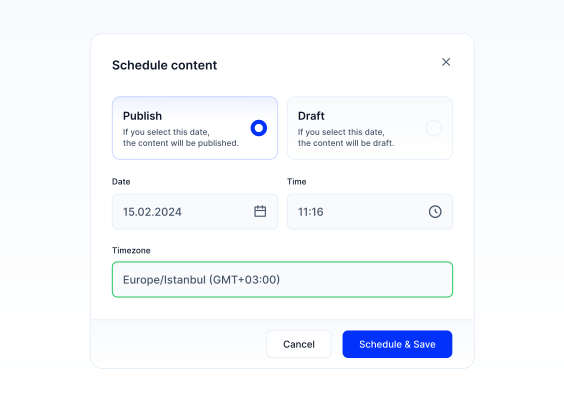
4- In the modal that opens, select the Publish card, specify the date, time, and timezone for your content to be published, and click the ”Schedule & Save” button.
5- If you need to unpublish a published content at a future date, select the Draft card in the modal, specify the date, time, and timezone for the content to be unpublished, and click the ”Schedule & Save” button.
Timezone Support
Contentrain's scheduling system supports all IANA timezones. The scheduled job runs at the exact date and time you specify in your selected timezone, regardless of the server's timezone.
Cancelling a Schedule
You can cancel a scheduled publish or unpublish at any time before the scheduled date arrives. Navigate to the content item and the scheduling option will show the current schedule, with an option to cancel it.
Bulk Publishing
You can publish multiple pieces of content that are in Draft or Changed status by selecting them in bulk.
1- Select the Content Model which you need to publish its contents.
2- Select the checkboxes on the far left of the table for the contents you need to publish.
3- From the button group that appears above the content table, click the ”Publish” button to publish your content in bulk.
Bulk Unpublishing
You can quickly unpublish multiple pieces of content that are in Published status by selecting them in bulk.
1- Select the Content Model which you need to unpublish its contents.
2- Select the checkboxes on the far left of the table for the contents you need to unpublish.
3- From the button group that appears above the content table, click the ”Unpublish” button to unpublish your content in bulk.